
EzMaker AI uses a default model, while Firefly gives you 10+ models to choose from. Different models come with different capabilities and settings, so Firefly gives you more options to work with.
EzMaker AI vs Adobe Firefly: Which Fits Your Needs?
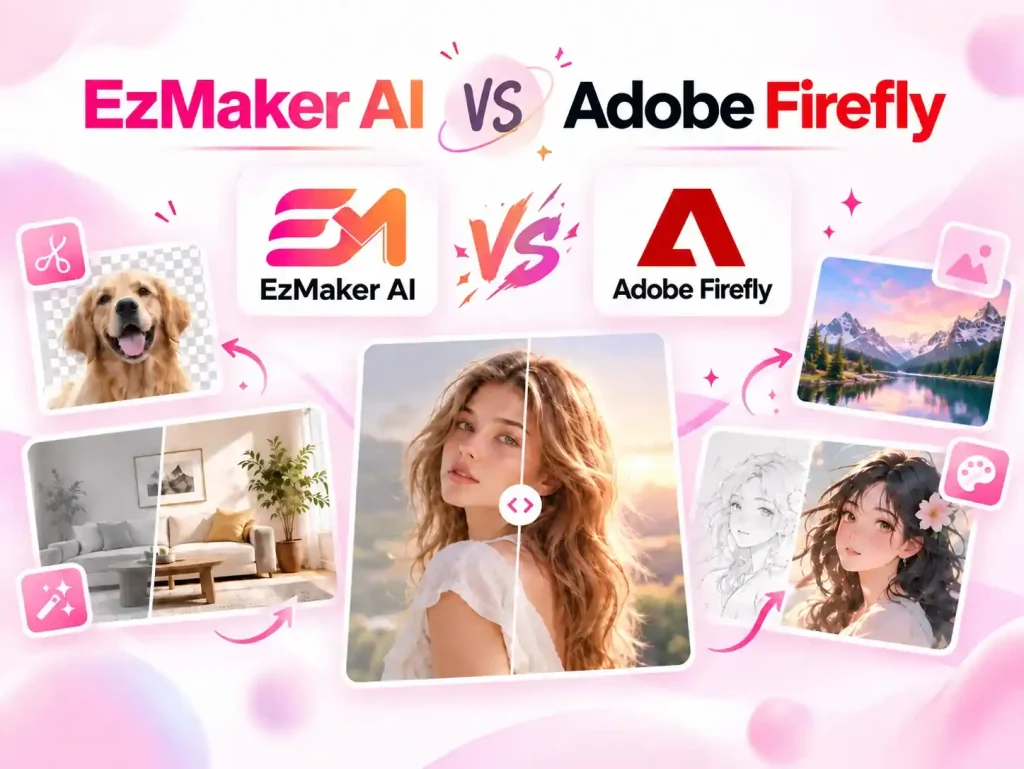
In the past, using Adobe for photo editing usually meant downloading Photoshop. Now, Adobe is moving toward a more lightweight experience, with Firefly offering a range of AI image editing tools that you can use online.
If your needs are fairly simple, you don’t necessarily have to use Adobe. Newer tools like EzMaker AI are another option. There’s no login required, so you can open the site and start editing right away.
But once you actually use the two tools, the differences go far beyond their feature lists. Give them the same photo and how different are the results? Which AI image editor is easier to work with? And when it comes down to it, does the established name still have the edge, or can a newer tool like EzMaker AI be a better fit? Let’s take a closer look.
EzMaker AI vs Adobe Firefly at a Glance
| Aspect | EzMaker AI | Adobe Firefly |
|---|---|---|
| Free to use | Yes | Yes, with limits |
| No login required | Yes | No |
| Starting price | Free | $9.99/month |
| AI models | 1 default model | 10+ models |
| Reference images | Up to 3 | Up to 6 |
| Preset templates | Yes | No |
| Editing tools | Simple and focused | More extensive |
| Output resolution | Up to 4K | Up to 4K |
| Free-user resolution | High resolution | Up to 2K |
| Watermark | No | No |
| Best for | Quick and simple edits | More editing options and model choices |
What Is EzMaker AI?
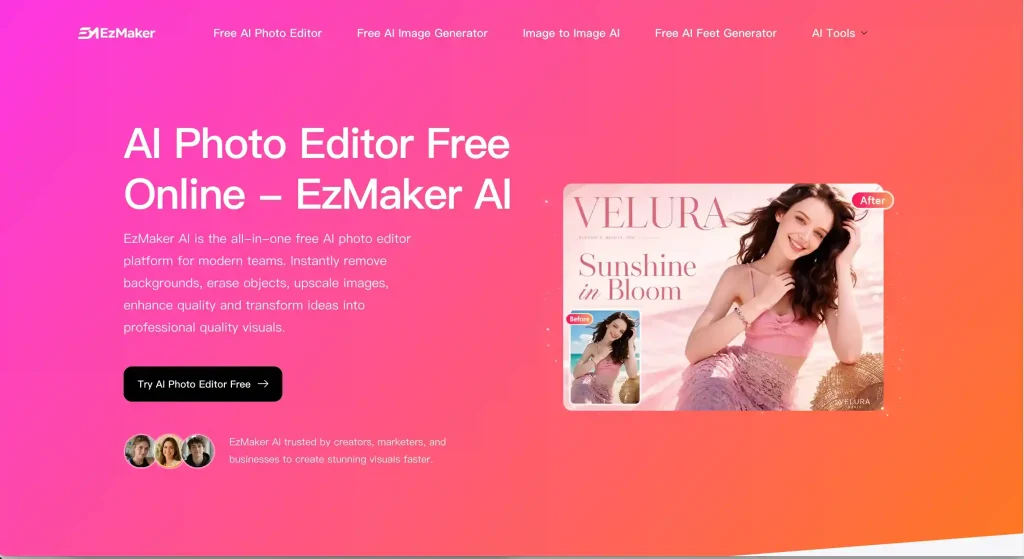
EzMaker AI is an AI image editor that has gained attention in 2026 for its simple workflow, convenience, and solid results. You don’t need to learn complicated editing tools. Just describe what you want to change in a simple prompt, and EzMaker can handle the edit for you.
How Does EzMaker AI Image Editor Work?
Using EzMaker AI is pretty straightforward. The process can be broken down into four steps:
- Step1: Upload your image
Upload an image you want to edit, or add up to three reference images to combine different people, elements, or styles.
- Step2: Describe your edit
Enter a prompt describing what you want to change, or choose one of the preset templates.
- Step3: Choose the aspect ratio
Pick an aspect ratio that fits how you plan to use the image.
- Step4: Generate and download
Submit your request, wait for the result, and download the finished image in high resolution.
Pros
- Completely free: There’s no subscription or extra paid upgrade required.
- High-quality output: Images can be generated in high resolution without a watermark.
- No login required: Open the EzMaker AI homepage and start editing right away without creating an account.
- Preset templates: If you don’t want to write a prompt from scratch, you can start with one of the ready-made templates.
Cons
- Limited multi-image uploads: You can use up to three images as references at a time, which may not be enough if you need to combine more images.
- No model selection: EzMaker AI doesn’t currently let you choose between different AI models, so you can’t switch models based on your editing needs.
What Is Adobe Firefly?
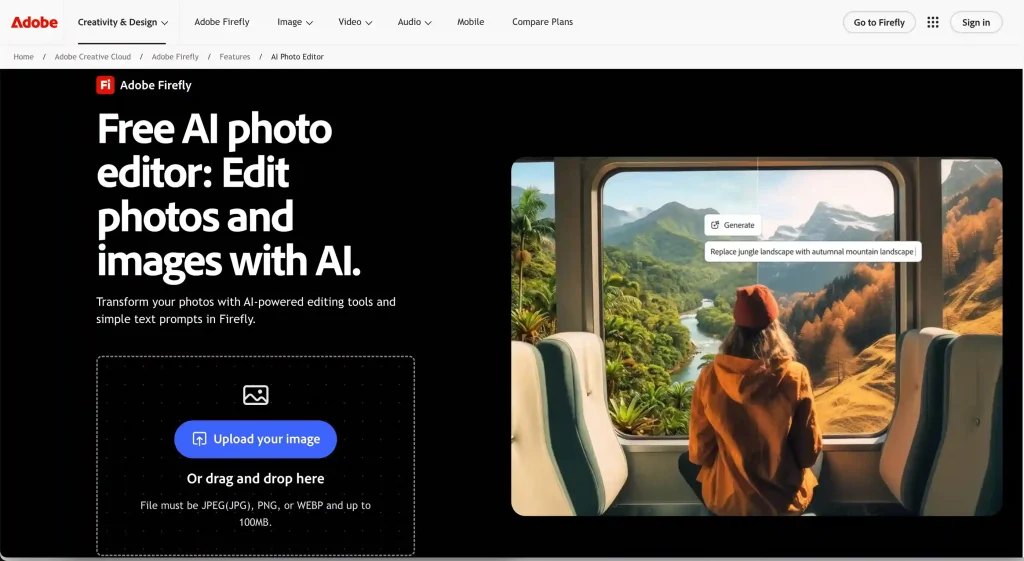
Adobe has been around for years as a professional image editing tool, and Firefly is Adobe’s move into AI-powered image editing. Instead of separating everything into different tools, Firefly brings editing, filters, object removal, Image Expander, upscaling, and background removal into one online workspace. It also supports several popular AI models and gives you different resolution options to choose from.
How Does Adobe Firefly Work?
Using Firefly takes a few more steps than EzMaker AI:
- Step1: Upload your image
Upload an image, or add multiple images as references. Firefly supports up to six images at a time.
- Step2: Enter the workspace
Once your image is uploaded, you’ll enter Firefly’s editing workspace, where you can choose different tools, models, and settings.
- Step3: Enter a prompt
Describe what you want to change in the image and enter your prompt. When you’re ready to generate, you’ll need to sign in to your Adobe account.
- Step4: Edit the result
Once the image is generated, you can keep working on it with tools for removing unwanted elements, expanding the image, upscaling, or changing the background.
Pros
- A wider range of models: Supports popular models such as Nano Banana 2 and FLUX, along with several models focused on different visual styles.
- High-resolution output: Supports image generation up to 4K.
- More reference images: You can use up to six images at a time.
- Google Search support: Firefly can use Google Search results to provide additional context for generated content.
Cons
- More steps: Getting from an uploaded image to a finished result involves more steps, including entering the workspace and signing in
- Takes some time to get used to: With so many tools and settings, the interface may take a little time to figure out for first-time users.
- No preset templates: You’ll generally need to choose the tool, model, and prompt yourself instead of starting from a ready-made template.
- More limits for free users: Free users face limits on generation and access to some features.
EzMaker AI vs Adobe Firefly: Key Differences
Editing Capabilities
To get a clearer idea of how the two tools handle image editing, we can test them with the same image and the same prompts. I picked three common editing tasks: changing the background, adding an object, and changing someone’s clothes. These tasks are simple enough to test, but still show how well each tool understands the original image and handles the requested changes.
Case 1: Change the Background
"Replace the indoor background with a quiet beach at sunset. Keep the person unchanged, including their face, clothes, pose, and body proportions. Make the lighting and shadows match the new background."
Test Results
Original Image

EzMaker AI

Adobe Firefly

Both tools successfully replaced the background with a beach scene, while the person stayed mostly unchanged. EzMaker AI’s result looks quite natural, with the lighting on the person blending well with the sunset. Firefly adds a bit more background detail, including the sea, sand, and a small boat in the distance. Overall, both did a good job in this test, and there wasn’t a major difference between the two.
Case 2: Add an Object
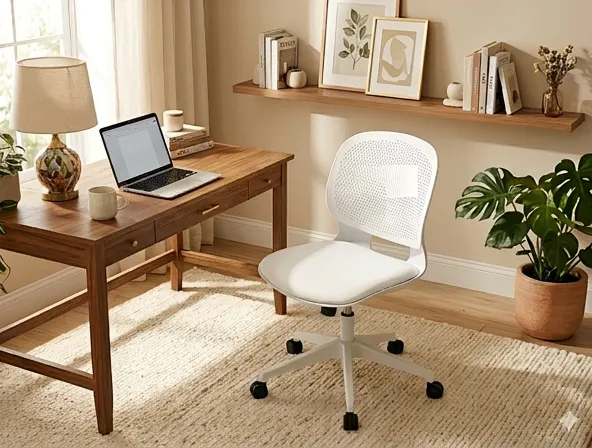
"Add a ceramic coffee cup next to the laptop on the desk. Keep everything else in the image unchanged. Match the lighting, shadows, perspective, and scale of the original photo."
Test Results
Original Image
EzMaker AI
Adobe Firefly
Both tools successfully added a coffee cup next to the laptop without noticeably changing the rest of the image. The desk space was pretty limited, but both placed the cup at a reasonable size and position, with the lighting and shadows matching the original fairly well. Overall, both did a good job in this test, with no obvious issues.
Case 3: Change Clothing
"Change the person's white strapless dress to a simple black leather jacket over a white T-shirt and black pants. Keep the face, hairstyle, pose, body proportions, and background unchanged. Make the new outfit look natural and match the original lighting, shadows, and perspective."
Test Results
Original Image

EzMaker AI

Adobe Firefly

The results from both tools are pretty similar this time. They both changed the original white strapless dress to a black leather jacket, white T-shirt, and black pants, while keeping the face and pose mostly unchanged. There are some small differences in the clothing details, but overall, neither result has any obvious issues.
Ease of Use
| Aspect | EzMaker AI | Adobe Firefly |
|---|---|---|
| No login | ✅ Yes | ⚠️ No |
| Image upload | ⚠️ Up to 3 images | ✅ Up to 6 images |
| Preset templates | ✅ Yes | ⚠️ No |
| Model selection | ⚠️ Default model | ✅ 10+ models |
| Editing tools | ⚠️ Basic | ✅ More extensive |
| Interface complexity | ✅ Low | ⚠️ Higher |
| Getting started | ✅ Directly from the homepage | ⚠️ Requires entering the workspace |
EzMaker AI keeps things pretty simple. You open the homepage, upload your image, and start editing. There’s no account to create and no model to pick, so you don’t have to figure out which settings to use before getting started. If you don’t want to write a prompt yourself, there are also preset templates to choose from.
Firefly gives you a lot more to choose from, but that also means there’s more to look through. You can switch between 10+ models and use different editing tools depending on what you want to do. It gives you more control, but for a quick edit, the extra options can make the process feel a little less straightforward. You also need to sign in before generating an image.
Output Quality
Resolution: 4K vs. 2K
EzMaker AI supports output up to 4K, while free Firefly users can generate images at up to 2K. If image size matters to you, the difference between 4K and 2K is pretty noticeable.
Models: 1 vs. 10+
Aspect Ratios: Standard Options vs. Model-dependent
EzMaker AI offers a few common aspect ratio options. With Firefly, the available ratios depend on the model. Some models give you several options, while others only offer two or three.
Usage Rights
If you’re only creating images for social media or personal projects, usage rights may not be something you think about much. But for client work, advertising, or other commercial projects, it’s worth checking how the tool handles your content.
EzMaker AI keeps things simple. You can download and use the images you generate without purchasing a separate commercial license. There are also no different usage rules based on the model you choose.
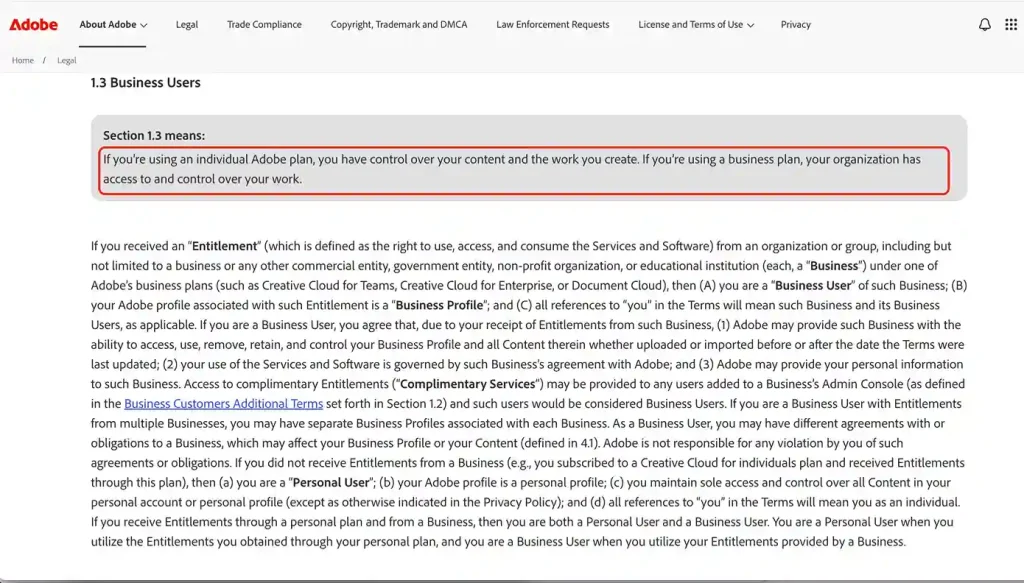
Firefly has more detailed rules, especially for business users. Adobe states that users retain ownership of their content, but content stored under a Business Profile can be accessed and managed by the organization. This means images created or uploaded through a company account may also be subject to the organization’s content management policies.
Pricing and Free Access: What Can You Actually Do?
| Aspect | EzMaker AI | Adobe Firefly |
|---|---|---|
| Free access | ✅ Yes | ✅ Yes |
| Starting price | ✅ Free | ⚠️ $9.99/month |
| Daily generations | ✅ Unlimited | ⚠️ 7/day |
| Free models | — | ✅ 13 |
| Paid models | — | ⚠️ 5 |
| Max. resolution for free users | ✅ Up to 4K | ⚠️ Up to 2K |
In practice, Adobe’s free access is actually fairly generous. You get 7 generations a day, along with 5 free models, which is enough for trying things out and handli ng simple edits. If you need more generations or want to use the other 5 paid models, you’ll need to upgrade.
Resolution is another noticeable difference between the two. EzMaker AI supports high-resolution output, while free Firefly users are limited to 1K or below. For images that are mainly used online or shared on social media, this may not be a big deal. But if you need a larger image, the limitation becomes more noticeable.
Final Verdict
EzMaker AI and Adobe Firefly offer two pretty different ways to edit images. EzMaker AI keeps things simple: you can open it and start editing without logging in, and there’s no need to spend time figuring out different models or settings. If you only need to edit an image now and then or don’t want to deal with complicated options, EzMaker AI is easier to work with.
Firefly makes more sense if you want more control over the editing process. It gives you more AI models, editing tools, and settings to choose from, so there’s more room to adjust things based on what you need. If you edit images often or want more control over how the final result is generated, Firefly gives you more to work with.
In our tests, both tools handled common tasks like changing the background, adding an object, and changing clothes pretty well, and the results were fairly close. If you care more about keeping things simple, free, and easy to use, EzMaker AI may fit better. If you want more model choices and editing options, Firefly may be a better fit.
FAQs
1.Is EzMaker AI free to use?
Yes. EzMaker AI is completely free to use and doesn’t require a subscription. You can start editing images directly without creating an account.
2.Is Adobe Firefly free to use?
Adobe Firefly has a free option, but free users have limits on generations, models, and resolution. More features and higher usage limits require a paid plan.
3.Can EzMaker AI produce results as good as Adobe Firefly?
For common image editing tasks, EzMaker AI can produce results that are quite close to Firefly. In our tests, both tools handled background changes, adding objects, and changing clothes well, with no major difference in the final results. The bigger difference is in the editing options and models each tool provides.
4.What is the difference between EzMaker AI and Adobe Firefly?
The biggest differences are in how they work and what they offer. EzMaker AI lets you start editing without logging in and uses a simpler workflow, while Firefly offers more models, editing tools, and settings but requires an Adobe account for generation.
5.Which AI image editor should I use, EzMaker AI or Adobe Firefly?
Choose EzMaker AI if you want a quick and simple way to edit images without logging in or paying for a subscription. Choose Firefly if you need more AI models, editing tools, and settings to work with.