

Telegram Payment Guide
Follow this guide to purchase credits using Telegram Stars. The entire payment process is completed through Telegram and supports Apple Pay, Google Pay, credit cards, and other available payment methods.
If you do not have enough Stars in your account, Telegram will guide you through the top-up process before completing your purchase.
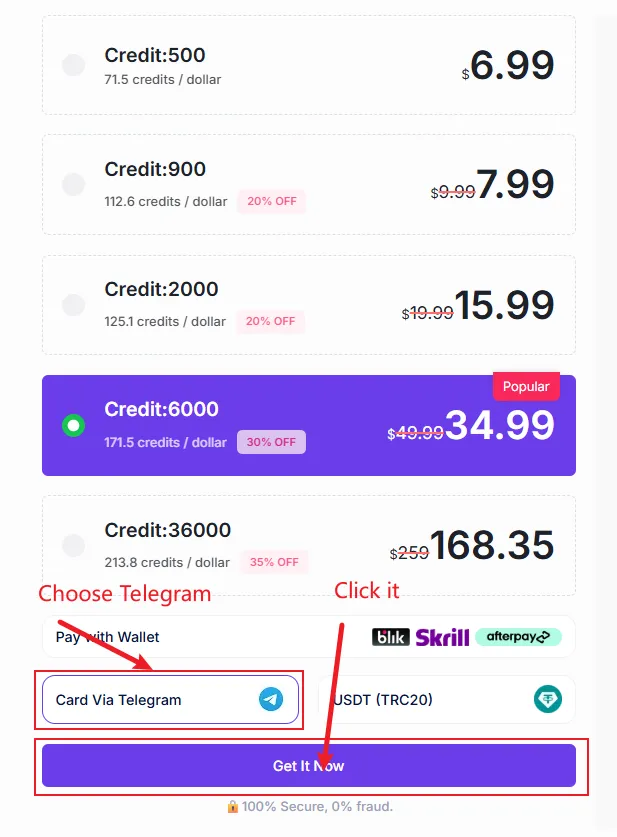
Step1.Choose Telegram as Your Payment Method
On our pricing page, select Telegram as your payment method.
Next, choose the credits package you would like to purchase. The payment page will display the package details along with the number of Telegram Stars required.
After reviewing the details, click Open Invoice to proceed.
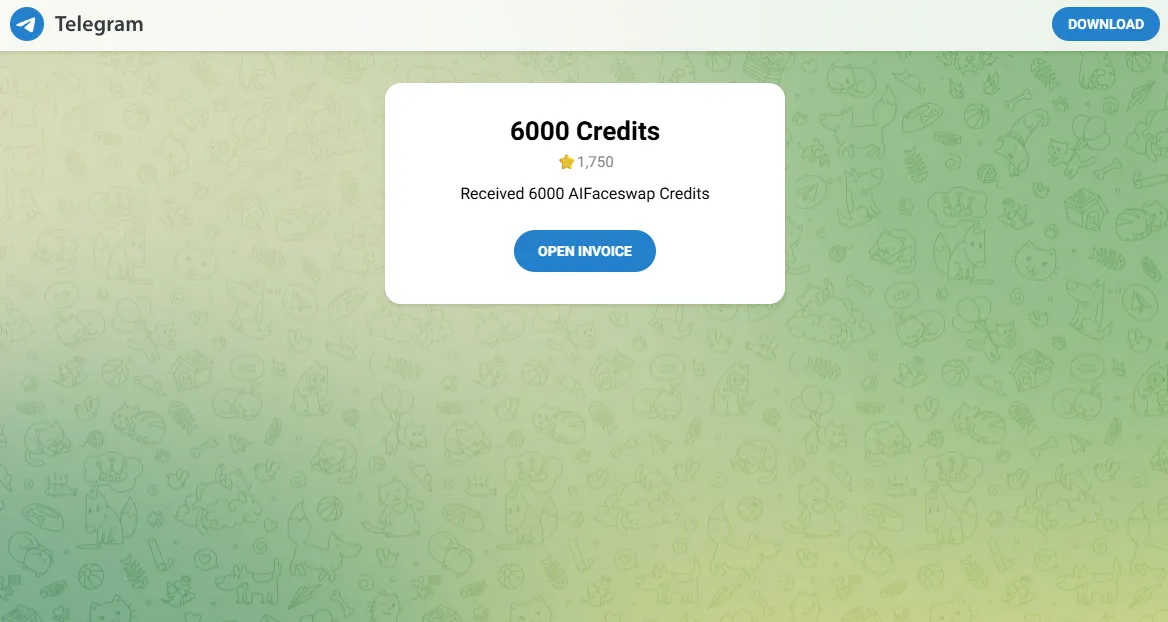
Step 2: Open the Invoice in Telegram
After clicking Open Invoice, you will be redirected to Telegram to complete the payment.
Depending on your device, the invoice may open in:
- The Telegram mobile app on iOS or Android
- The Telegram Desktop application on Windows, macOS, or Linux
- Telegram Web in your browser
If Telegram is not installed or you are not signed in, please install Telegram and log in to your account before proceeding.
Once the invoice page appears in Telegram, you can continue to the next step and review your purchase details.
Step 3: Review the Payment Details
Once the invoice is opened in Telegram, a payment summary will be displayed before completing the transaction.
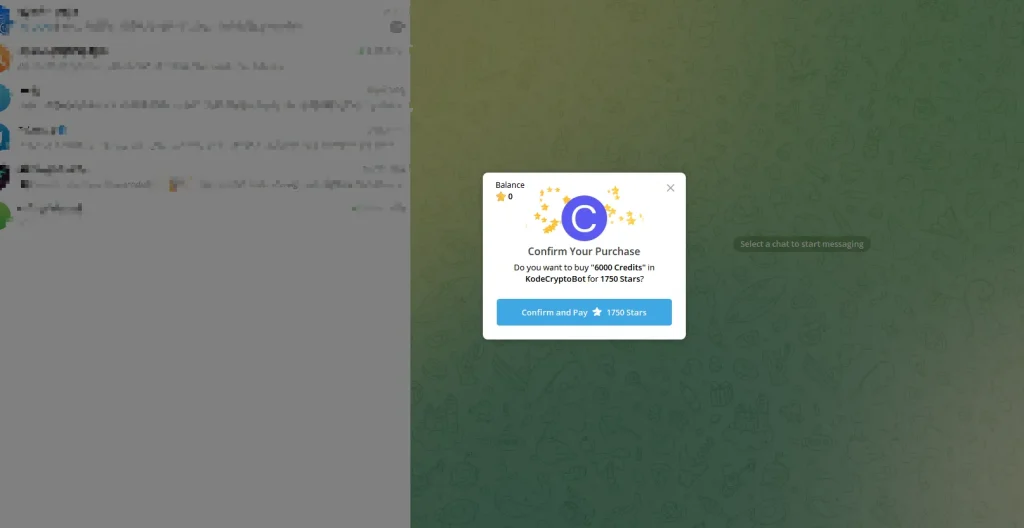
This section typically includes:
- The selected credits package
- The required amount of Telegram Stars
- The payment recipient
Please review all details carefully to ensure the information is correct before proceeding.
When you are ready, click Pay to authorize the payment. Telegram will then process the transaction using your available Stars balance.
Step 4: Receive Your Credits
After the payment is completed successfully, your credits will be added to your account automatically.
There is no need to manually activate or redeem anything. Simply refresh the website or check your account balance to confirm that the credits have been applied.
Once the credits appear in your account, you can start using them immediately across all features.
Troubleshooting
If you encounter any of the following issues during the payment process, please refer to the solutions below.
1.Insufficient Stars Balance
Telegram payments require a sufficient Stars balance to complete the transaction. If your balance is not enough, the payment cannot be processed, and you will be prompted to add Stars before continuing.
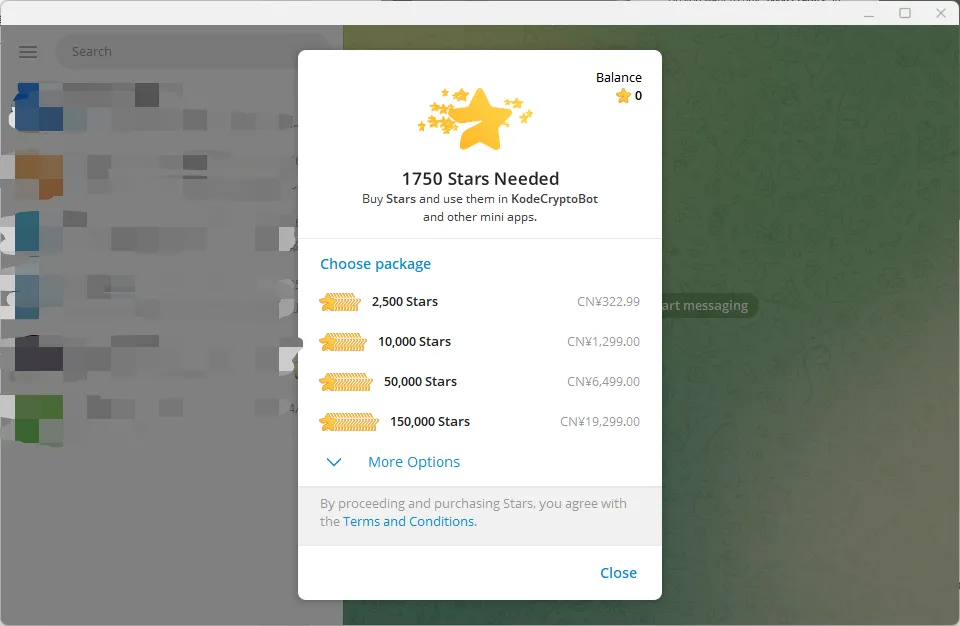
Stars can be purchased directly within Telegram using the payment methods available in your region, such as credit/debit cards, Apple Pay, or Google Pay.
After topping up your balance, reopen the payment invoice to proceed with the checkout.
💡Note: Depending on the platform used (mobile or desktop), additional service fees may apply.
2.Payment Error When Purchasing Stars
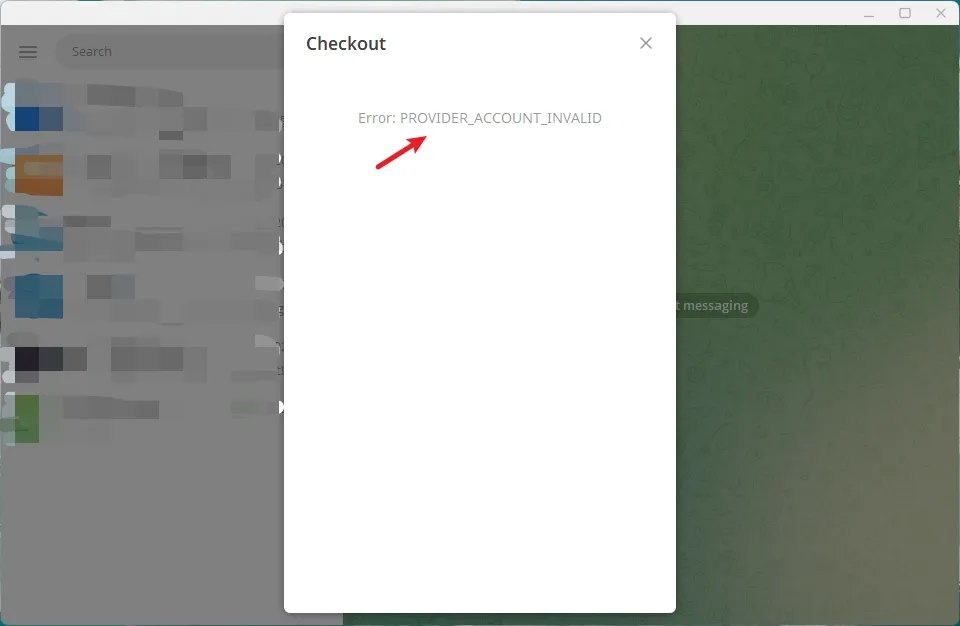
In rare cases, the Stars purchase process may fail due to a temporary issue in Telegram’s payment system. When this occurs, the invoice page may not complete the checkout successfully.
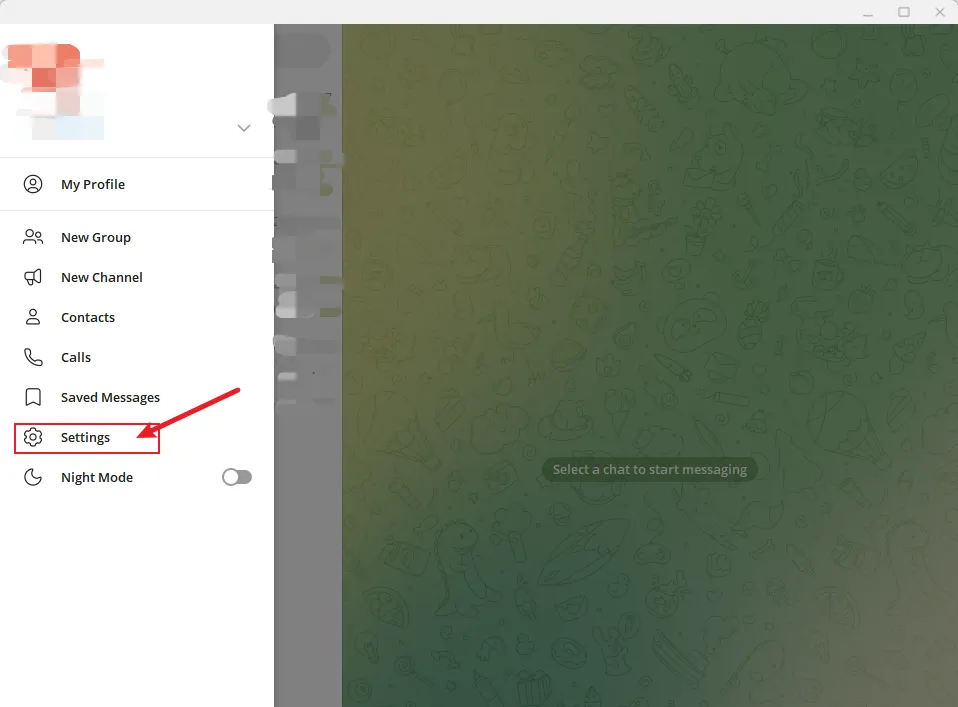
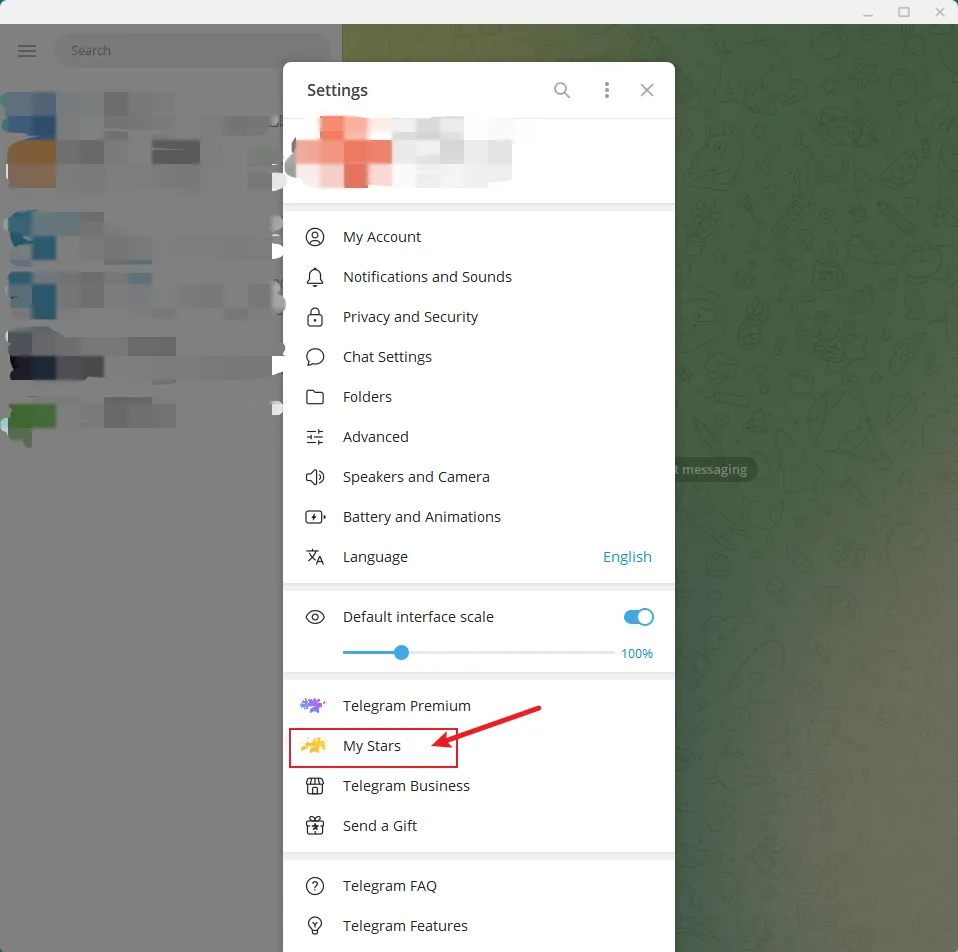
If the error appears, you do not need to continue using the invoice page. Instead, Stars can be added directly from your Telegram account settings.
1. Open Telegram and go to 【Settings】
2. Then enter 【My Stars】
3. In this section, you will be able to view your Stars balance and choose 【Top Up Balance】
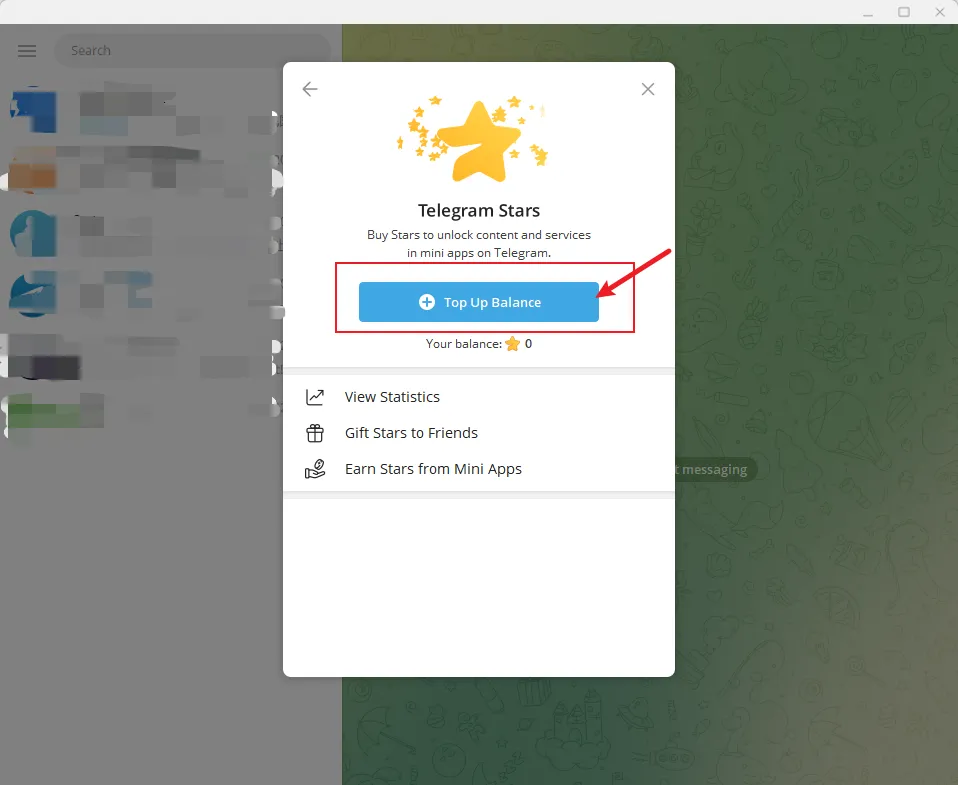
4. Select a Stars package and complete the payment using the available payment method.
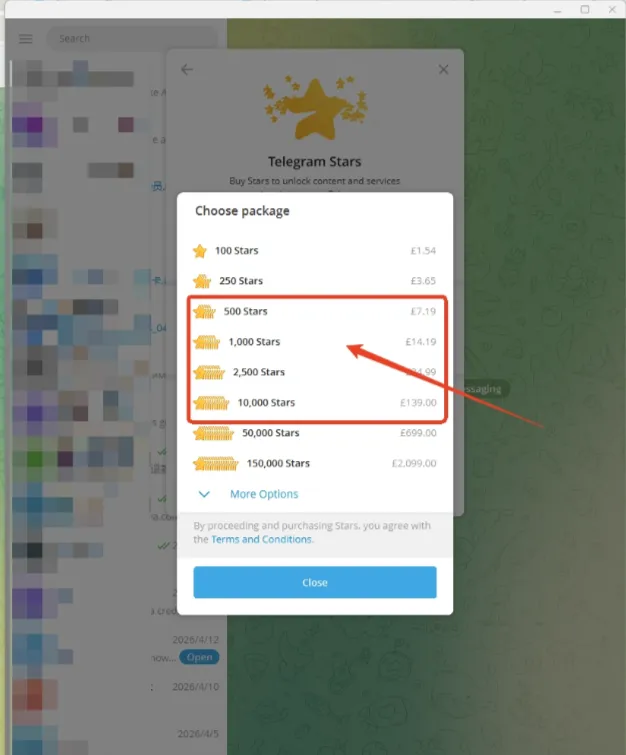
5. After the top-up is completed, the Stars will be added to your Telegram account balance.
6. Return to the original checkout page and reopen the invoice to continue the payment process.
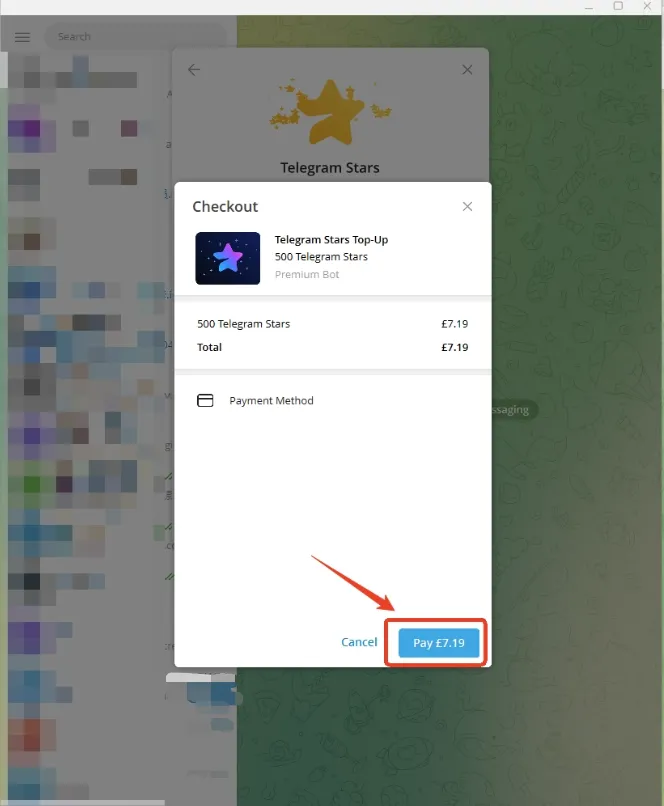
💡Important Notice: Adding Stars to your Telegram balance does not complete the purchase by itself. The final step of invoice payment must still be completed for credits to be issued.
Notes
- Telegram Stars are processed and managed entirely by Telegram’s official payment system. We do not store or process payment information directly.
- Please ensure you are logged into the correct Telegram account before completing the payment, as Stars and payments are tied to the account used.
- Purchasing Stars is only one part of the payment flow. The final invoice payment must be completed to successfully receive your credits.
- In most cases, credits are delivered instantly after payment confirmation. If your balance does not update immediately, try refreshing the page or re-logging into your account.
- Platform fees may apply when purchasing Stars on mobile devices via the App Store or Google Play. Desktop or web purchases may avoid these additional charges.