

You may also want to remove unwanted signs, people, or power lines from a photo, or clean up annotations and arrows that were added to an image. These tasks are essentially similar to watermark removal, as they all rely on AI inpainting technology to restore the missing areas naturally.
Best AI Watermark Removers in 2026: 6 Tools Tested & Compared
There are plenty of AI watermark removers online now, and most of them promise similar results. In practice, the differences become obvious once you try them. A tool that handles a small corner logo perfectly may struggle with a watermark across a face or detailed background. Free access can also come with limits on resolution, downloads, or file size.

We tested six popular free AI watermark removers to see how they perform in everyday use. We compared the quality of the cleaned images, how much control each tool gives you, processing speed, image limits, and what you actually get for free. You’ll also find tips for dealing with harder watermarks and fixing common problems such as blurry areas, leftover marks, and damaged details.
Why You Might Need an AI Watermark Remover
Watermark removal is more common than most people realize. Here are three of the most typical everyday use cases, all based on the same assumption: you own the image or have permission to edit it.
Remove Watermarks from Your Own Photos
Maybe you took a photo years ago and your camera added a date stamp in the corner. Perhaps your brand has since changed its logo, but older product images still show the previous version. Or you added a watermark to protect a photo and now want the original image back for a new use.
Remove Unwanted Text, Logos, or Objects
Save Time on Manual Photo Editing
Removing a watermark manually can easily take 15–30 minutes per image, and even longer when the background is complex. For a small watermark, that can feel like a lot of unnecessary work. AI tools can analyze the surrounding pixels and handle most of the restoration automatically.
AI Watermark Remover for Different Types of Watermarks
The type of watermark affects both which tool you should use and how difficult it will be to remove. Its position, size, transparency, and the background it covers can all influence the final result.
Text Watermarks
Text watermarks are the most common type. They usually appear as semi-transparent or solid text placed diagonally across an image or in a corner. Text on a plain background is the easiest to remove, while text covering the main subject requires more advanced texture reconstruction.
Logo Watermarks
Brand logos are usually semi-transparent and placed in a corner of the image. Their clean edges and predictable shapes make them one of the easiest types for automatic detection tools to handle. Most tools can remove them in just a few seconds with little to no manual work.
Large or Center Watermarks
The larger the area covered by a watermark, the less original image information the AI has to work with. This means the tool has to generate more of the missing content instead of simply extending the surrounding. Even if the watermark disappears completely, it’s still worth checking the restored area for blurring or unnatural textures.
Repeated or Tiled Watermarks
Tiled watermarks repeat across the entire image and are commonly used on preview images. They are more difficult to remove than a single logo in the corner because the AI has to restore multiple areas across the image.
Watermarks Over Faces, Hair, or Fine Details
Faces contain highly distinctive features, so even small reconstruction errors can be easy to spot. Fine details such as hair and fur are equally challenging, requiring strong contextual reconstruction to produce natural-looking results.
How We Tested These AI Watermark Removers
We ran each tool on the same five test images matching the watermark types above, and recorded removal quality, processing time, and free-tier behavior.
Test Criteria for AI Remove Watermark Tool
- Watermark Removal Accuracy: We looked at how thoroughly each tool removes watermarks and whether the edited area blends naturally with the rest of the image. Visible marks, blurry patches, or obvious AI artifacts all counted against it.
- User Experience: A good watermark remover shouldn’t require editing skills. We considered how easy it is to upload a file, remove the watermark, preview the result, and download the finished image.
- Processing Time: We compared how long each tool takes to complete a typical removal task. Tools that consistently deliver results in seconds or a few minutes performed better here.
- Format & Image Quality Support: We checked which image and video formats each tool accepts, as well as the resolutions it can process and export. Support for HD and 4K content was a plus.
- Cost & Free Access: We compared free usage limits, paid plans, download restrictions, and overall value. Tools that let users actually test the core removal feature for free scored better than those that hide essential features behind a paywall.
Things to Watch Out For When Choosing an AI Watermark Remover
Not every AI watermark remover delivers the same experience, and a few details are easy to miss. A tool may advertise itself as free but require payment to download the final image or add a new watermark to the result. Privacy matters too, especially if you’re uploading personal or confidential images, so check how long your files are stored. Make sure the tool supports the file types and resolutions you actually need, and avoid services that take too long to process a simple image. Whenever possible, try the tool first and check the removal quality yourself before paying for a plan.
Best AI Watermark Removers for Photos in 2026
| Tool | Auto Detect |
Manual Select |
Prompt Remove |
Batch Remove |
Formats | Max Size | 4K Download |
Speed | Pricing |
|---|---|---|---|---|---|---|---|---|---|
| EzMaker AI | ✓ | ✓ | ✓ | × | PNG, JPEG, JPG, WEBP |
Any Photo | ✓ Free | Very Fast | 100% Free |
| Remove.bg | ✓ | ✓ | × | ✓ | JPG, JPEG, PNG, WebP |
22MB | Paid | Fast | $4.66/mo |
| WatermarkRemover | ✓ | ✓ | × | ✓ Paid | JPG, JPEG, PNG, HEIC, WebP |
Depends | Paid | Fast | $0.09/credit |
| Cleanup.pictures | × | ✓ | × | × | JPG, JPEG, PNG |
Depends | Paid | Medium | $5/mo |
| Unwatermark AI | ✓ | ✓ | × | ✓ Paid | PNG, JPEG, JPG, WEBP |
18MB | Paid | Medium | $0.078/credit |
| Pixelcut | × | ✓ | × | ✓ | JPG, PNG, HEIC |
100MB | Paid | Fast | $8/mo |
EzMaker AI -The Easiest Watermark Remover with 4K Download
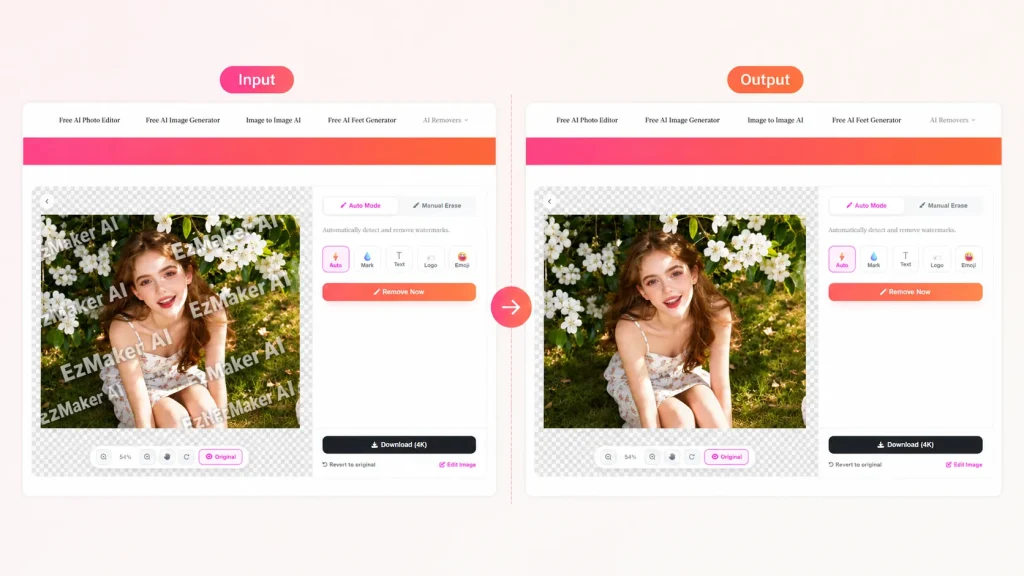
EzMaker AI offers a free AI watermark remover that works without signing up. It’s simple to use and gives users three ways to remove watermarks: Auto Mode for automatic detection, Manual Erase for more precise control, and prompt-based removal for describing what needs to be removed.
Beyond standard text and logo watermarks, the tool can also handle timestamps, semi-transparent overlays, unwanted objects, and even full-screen watermarks. Its AI reconstructs the affected area using surrounding textures and details rather than simply blurring it, which helps preserve faces, lighting, shadows, and complex backgrounds more naturally.
Remove.bg

Remove.bg is primarily known as an AI background removal tool, but it is also a good watermark remover. If your workflow involves removing backgrounds as well as cleaning up unwanted elements, having those capabilities in one service can be useful. This tool is internally connected with Canva. However, for users whose main goal is removing text or logo watermarks, it’s worth comparing the actual reconstruction quality with tools designed specifically around watermark or object removal.
WatermarkRemover
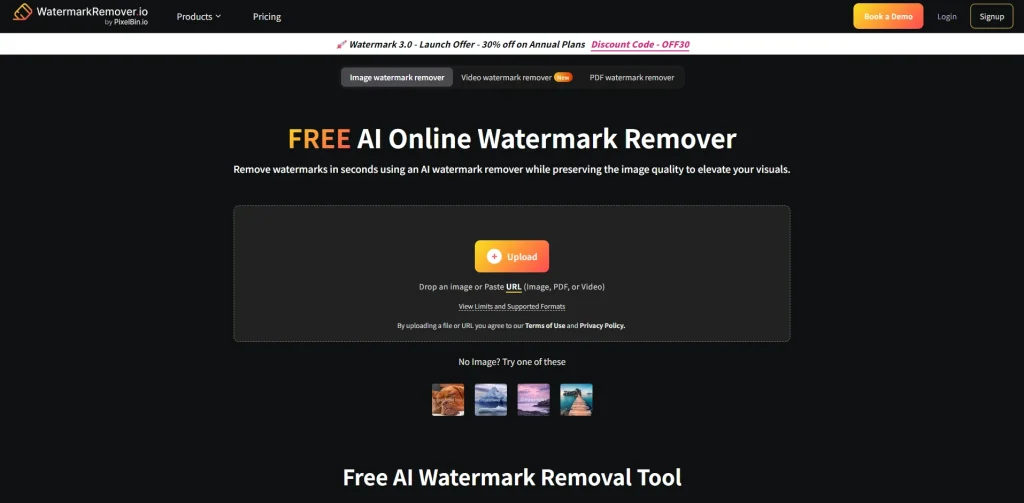
WatermarkRemover is a dedicated AI tool that automatically detects and removes watermarks while reconstructing the affected areas. It offers a side-by-side preview so you can compare the original and cleaned image before downloading. The process is quick and requires little manual editing. Users can switch models between Fast, Pro and Max if they get enough credits. Batch processing is now available to premium users.
Cleanup.pictures
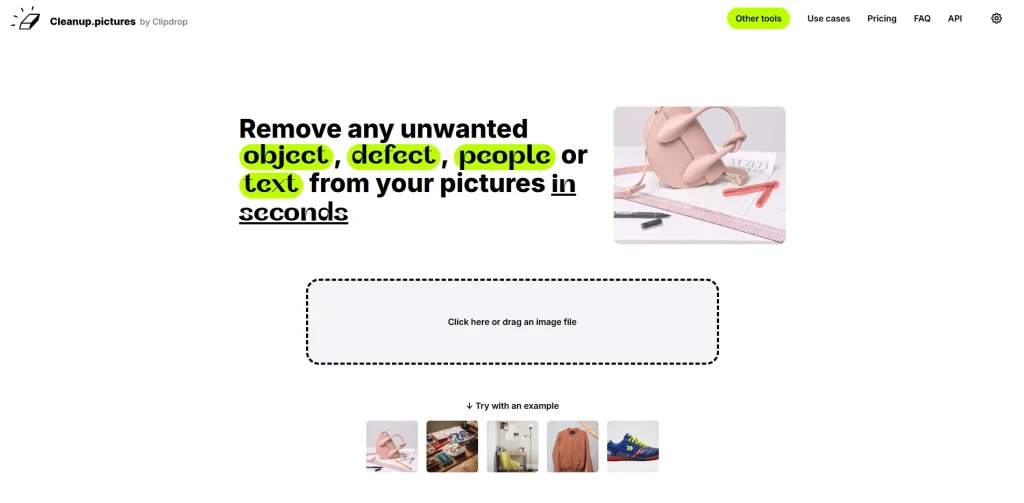
Cleanup.pictures is a lightweight, browser-based AI image cleanup tool built for removing unwanted objects, text, and watermarks from photos. Its biggest strength is AI inpainting, particularly on busy or textured backgrounds such as walls, grass, and repeating patterns, where it can reconstruct missing areas with natural-looking detail. However, uploading an HD image requires you to upgrade to Pro or downscale the image before you can continue.
Unwatermark AI
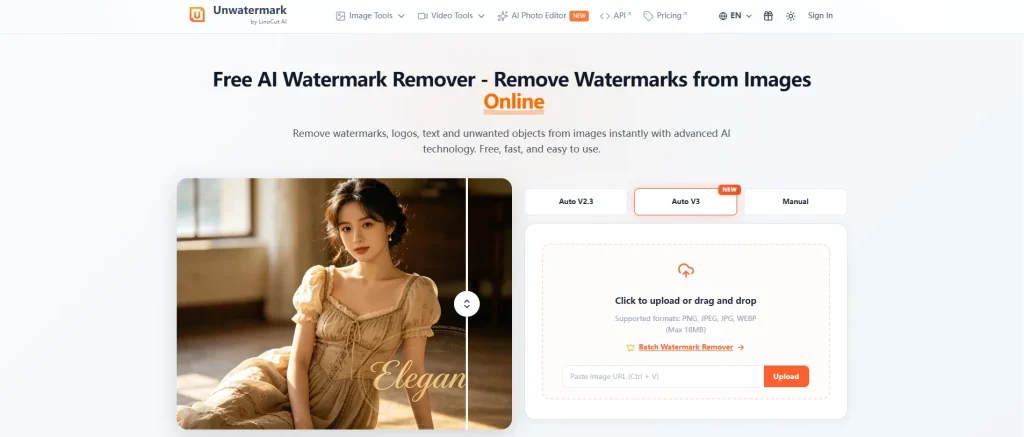
Unwatermark AI is designed specifically around watermark removal, so it’s a natural option for users with a straightforward watermark-removal task. The more interesting test cases are larger or semi-transparent watermarks and watermarks that overlap detailed backgrounds. These situations reveal whether a dedicated tool can maintain natural textures rather than simply making the watermark disappear.
Pixelcut
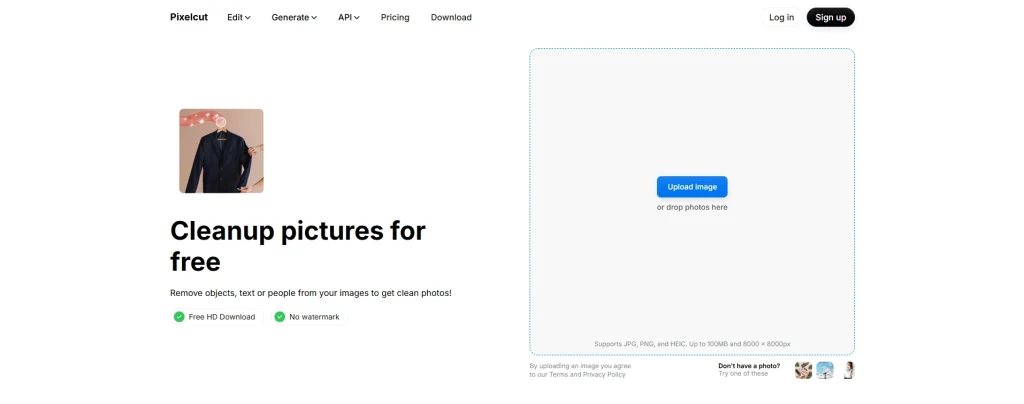
Pixelcut is designed for quick and simple photo cleanup. You can upload an image, select the watermark or unwanted text, and let the AI reconstruct the area using the surrounding content. The workflow is beginner-friendly and works well for creators, online sellers, and small businesses that need to clean up product photos or social media images without using a traditional photo editor. Pixelcut is also convenient for mobile editing. However, its editing controls are relatively simple, so it may offer less precision when removing large or complex watermarks that overlap detailed backgrounds.
EzMaker AI: Why It's the Best Watermark Remover
Advantages of EzMaker AI Watermark Remover
- Easy to use, free to upload and download 4K images.
- Works for watermarks, text, logos, and unwanted objects
- Remove watermarks without unnecessary editing
- AI reconstructs backgrounds that look natural, not patched
- More control when watermarks overlap faces, objects, or fine details
3 Ways to Remove Watermarks with EzMaker AI
1. Remove Watermarks Automatically
Automatic removal is the easiest option and a good starting point for small, clearly defined watermarks. If the watermark sits in a relatively simple area, AI can identify the target and reconstruct the background without requiring you to create a precise selection yourself.
2. Manually Erase a Watermark
If a watermark sits close to a product edge, person’s hair, or another object you want to preserve, manually defining the area can give the AI a more precise target. A useful rule is to avoid selecting more of the image than necessary. The less area the AI needs to reconstruct, the fewer opportunities there are for unwanted changes.
3. Tell AI What You Want to Remove
Another approach is to describe the desired edit in natural language.For example: Remove the logo in the bottom-right corner. This can be more intuitive and clear.
When You Choose EzMaker AI
EzMaker AI is recommended if you:
- Want fast, AI-powered watermark removal
- Need automatic and manual removal options
- Prefer lightweight online tool
- Need to preserve important details around the watermark
- Regularly work with content creation or photo editing
Common AI Watermark Removal Problems and How to Fix Them
AI Removes Part of the Object
If AI removes part of a person, product, or other object along with the watermark, the selected area may be too large.
Solution: Make the target area more precise and use manual selection when possible. Keep the selection limited to the watermark and the smallest surrounding area needed for reconstruction.
The Removed Area Looks Blurry
A blurry patch usually means the AI didn’t have enough useful context to reconstruct the hidden details.
Solution: Try a smaller selection and process the area again. If the picture contains fine details, breaking one large repair into several smaller repairs can help. You can also recover any remaining softness with an enhancer.
The Watermark Is Still Partially Visible
Semi-transparent watermarks can be particularly stubborn. A faint outline or shadow may remain even when most of the watermark has disappeared.
Solution: Try watermark removal with the same picture again, run another pass over the remaining area or switch to manual mode for more precise control.
Complex Textures Look Unnatural
Grass, hair, brick walls, fabric, foliage, and other irregular textures are difficult for AI to reconstruct convincingly.
Solution: Use a smaller selection and process complicated areas separately. Always inspect the result at full size before deciding that the image is finished.
Repeated Watermarks Aren't Fully Removed
Tiled watermarks can leave behind traces because they cover multiple areas of the image.
Solution: Instead of processing the entire image in one pass, work on smaller regions individually. Afterward, check the boundaries between the repaired areas for visible differences in texture or sharpness.
Before You Remove a Watermark: Know Your Rights
Watermark removal tools are legal tools. Whether you may remove a given watermark depends on whether you own the image or have the right to modify it. Check against the two lists below before you start.
Generally Appropriate
- Photos you own: If you created the image and own the copyright, you can generally remove or change a watermark you added to your own work.
- Watermarks you added: If you originally placed a logo, copyright notice, or other watermark on your own image, you can remove it when you need a clean version.
- Permitted content: Some photographers, designers, agencies, or clients may give you permission to modify their work. If the license or agreement allows editing, removing a watermark may be permitted.
May Not Be Appropriate
- Someone else’s copyrighted notice: Taking a watermark off another creator’s work does not transfer ownership of the image to you.
- Commercial use without permission: Selling someone else’s work after removing its watermark can constitute copyright infringement.
- Erasing attribution: Removing an artist’s signature or credit to misrepresent who made the work is illegal in most countries, even when you paid for the file.
- Redistributing copyrighted content: Removing a watermark before reposting, selling, or distributing someone else’s copyrighted work does not make the underlying use lawful.
Frequently Asked Questions About Watermark Remover AI
What is the best free AI watermark remover?
The best free option depends on the type of image you’re processing and the limits of each tool’s free plan. If you’re only removing a simple watermark occasionally, an online tool with a free tier may be enough. Check the current resolution, download, and usage limits before choosing one.
Is there an AI watermark remover that supports free HD downloads?
Yes. Many tools do support high-resolution output. If you need a free one, EzMaker AI is the right option for maintaining the premium image quality up to 4K.
Can AI remove watermarks from complex backgrounds?
Yes. AI may need to reconstruct grass, hair, brick, fabric, foliage, or other detailed textures. For better results, use a precise selection and inspect the repaired area at 100%.
Does watermark removal reduce image quality?
It depends on tool and scenario. A strong tool on a simple watermark type can be near-invisible to the eye. Large and tiled watermarks inevitably cost texture detail, which you can recover with an AI upscaler or enhancer.
Is it legal to remove a watermark?
Whether the removal is legal depends on whether you own the image or have the right to modify it. See the rights section above for the checklist.
Conclusion
If you’re looking for an online tool that’s easy to use, flexible, and suitable for various watermark scenarios, EzMaker AI is our top recommendation. Automatic mode is ideal for quick processing, manual erasing is perfect for finer selections, while AI commands offer a more intuitive editing experience.
Regardless of which tool you choose, we always recommend checking the repaired area at 100% zoom. Removing the watermark is only the first step; the true measure of a good AI watermark remover is how naturally the repaired image looks.