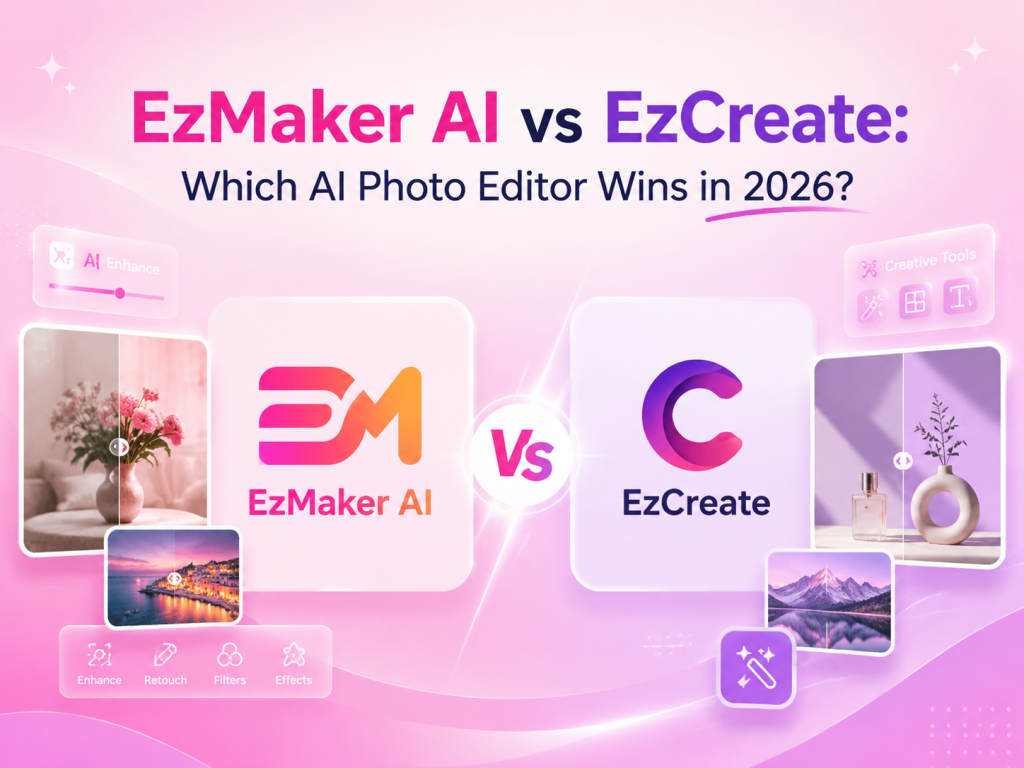

EzMaker AI vs EzCreate: Which AI Photo Editor Wins in 2026?

AI photo editors are everywhere these days. Swap a background, touch up a shot, give it a whole new vibe, and one quick prompt and you’re done. But the second you line two tools up next to each other, it’s the little stuff that calls the shots. For example, background replacement may look convincing at first glance. But key differences often come down to how naturally the subject edges are handled, whether fine details like hair are preserved, how well the new background matches the lighting, and whether the final image shows any noticeable AI artifacts.

EzMaker AI vs EzCreate: Which AI Photo Editor Wins in 2026?

Both EzMaker AI and EzCreate are lightweight AI photo editors concerning fast image editing. Their common goal is to lower the barrier to image editing, allowing users with no professional experience to modify images through simple prompts.
Since both products target a similar audience, we focused on testing their real-world editing capabilities. We used the same images and prompts across both AI photo editors and tested several commonly used features. We also evaluated image quality, prompt understanding, free usage limits, generation speed, and other factors to help you decide which tool better fits your needs.

What to Look for in a Good AI Photo Editor?

When you’re choosing between tools like EzMaker AI and EzCreate, or any of the online editors you should consider the following shortlist of what matters.

  • Ease of use: How many steps sit between you and a finished edit? A good AI photo editor should provide an intuitive editing experience for beginners. Users should be able to upload an image, describe their changes, and get high-quality results. The workflow should be clear, with easy-to-understand tools, smooth navigation, and minimal steps required to complete an edit.
  • Free plan limitations: “Free” means different things depending on who’s saying it. Some tools hand you a few credits and then ask for an account; others let you edit with no sign-up then force a watermark. Check three things specifically: how many generations the free tier actually allows, whether it runs on a credit system (and how fast you burn through it), and which features stay locked behind a paywall.
  • Image quality: This is where editors separate themselves. Look past the before/after on the landing page and ask questions: are the details natural? Does the result actually look real? Does upscaling sharpen an image, or just stretch it bigger? And if you’re running a series of edits, does the style stay consistent from one to the next, or does every image come out looking like it came from a different tool?
  • Prompt accuracy: If the editor takes text prompts, accuracy is everything. A good tool does exactly what you asked. It should hold the original composition instead of quietly restructuring the whole thing.
  • File type: Check whether the editor supports commonly used image formats for both input and output (JPG, PNG, WebP?). It should make sure that user can export high-resolution results and adjust image sizes without quality loss.
  • Speed: From upload to a usable result, how long are you actually waiting? Real-time GPU processing is the bar now — most edits should land in a few seconds, not minutes. Pay attention to the full loop, not just generation: a tool that’s instant at rendering but slow to upload or painful to download gives the time right back. For anyone editing in batches, speed stops being a nice-to-have and becomes the whole game.

EzMaker AI vs EzCreate — Overview & Quick Comparison

What is EzMaker AI?

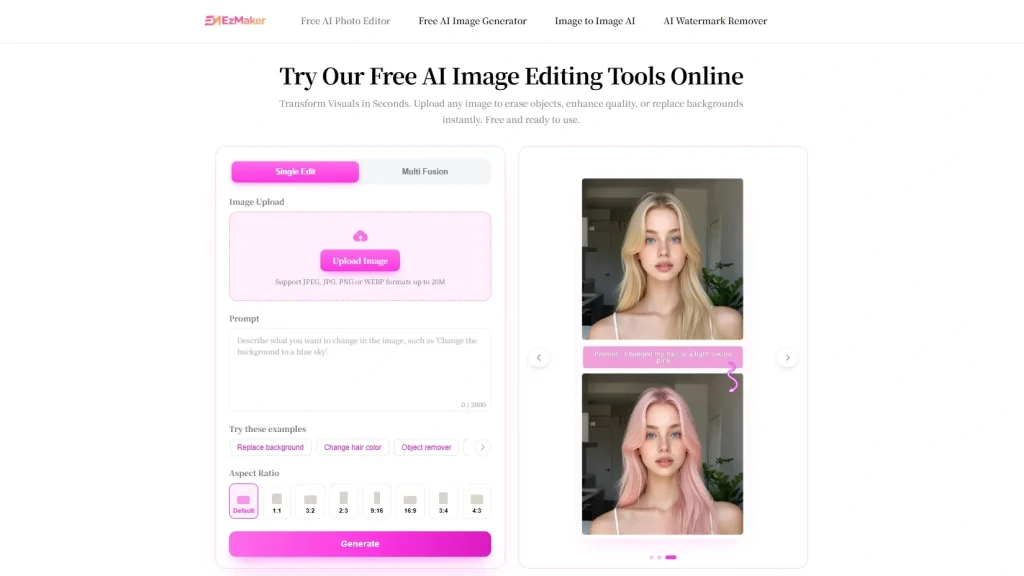
EzMaker AI Workspace Interface

EzMaker AI is a free AI photo editor that makes studio-quality image editing easier than ever. Powered by advanced image processing technology, it helps users quickly edit photos, enhance visuals, and create unique content anywhere, anytime.
With no complicated software and no learning curve, everyone can access the latest AI image creation and don’t have to sign in or upgrade. It includes prompt templates for everyday edits and integrates tools such as magic eraser, AI image extender, 4K upscaler, and even AI image generator.

What is EzCreate?

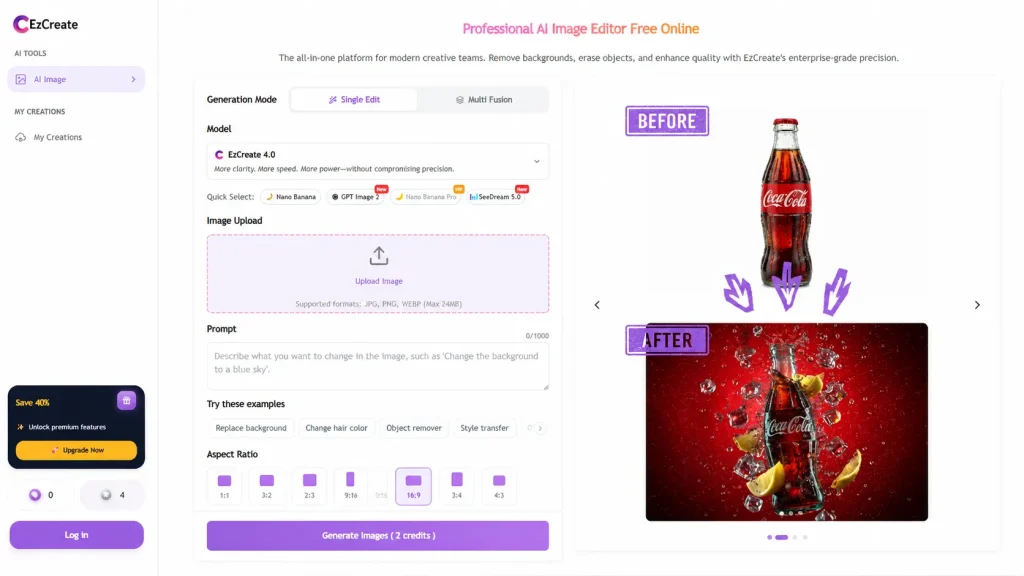
EzCreate Workspace Interface

According to its official positioning, EzCreate provides professional image editing for modern creative teams. One of the platform’s biggest advantages is that it brings together the latest AI image generation models. Each creation uses as little as 18 credits with models like Nano Banana 2, Nano Banana Pro, and GPT Image 2.
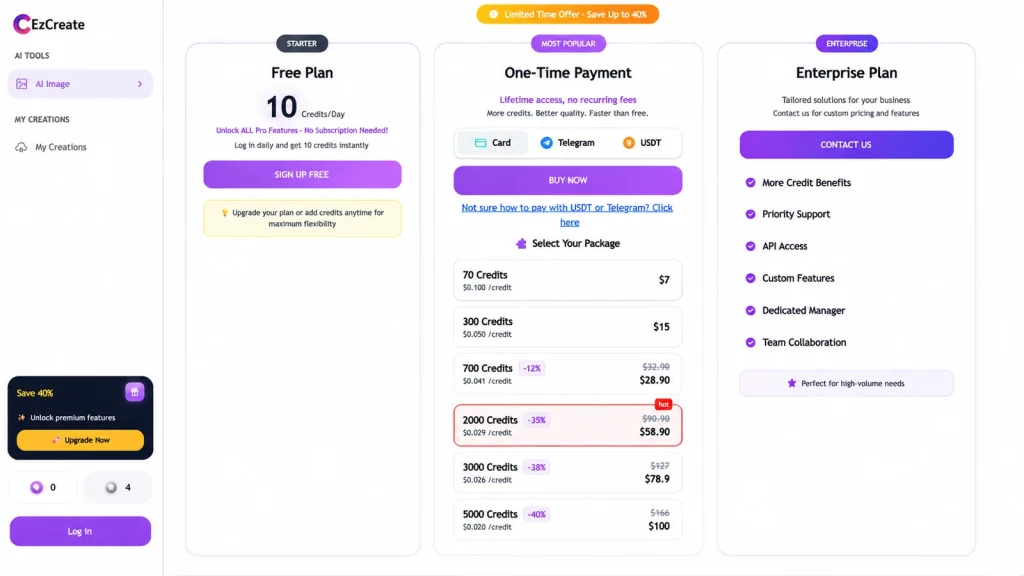
EzCreate allows users to try the platform without logging in and get 6 free credits for instant image editing. Registered users can claim 10 free credits daily and purchase additional credits that never expire, giving them flexible access to unlimited AI editing.

At a Glance: Two AI Photo Editors

Items EzMaker AI EzCreate
Free Access Yes Yes
Daily Limits No Limits Limited
Free Daily Credits No Credits 6 (No Login) & 10 (Login)
Multi-Image Upload 3 Images 5 Images
Supported Formats JPEG, JPG, PNG & WEBP JPG, PNG & WEBP
Size Limit Max 20MB Max 24MB
Prompt Length Limit 2000 Words 1000 Words
Aspect Ratio 8 Choices 9 Choices
Resolution 4K 1K~4K
AI Model Integrated AI Model 9 AI Models
Image History 6 Creations for 48 hours 60 Creations for 7 Days(Signin)
Multilingual Interface Coming Soon 18 Languages
Generation Speed Fast 🚀 Fast 🚀
Ease of use Very Easy Easy

EzMaker AI vs EzCreate — Real Test

To make the analysis as objective and fair as possible, we tested EzMaker AI and EzCreate with exactly the same tasks. All of the tests used the same original images, identical prompts, and similar editing goals. Then we compared their final results to evaluate the two AI photo editors under the same conditions.

Test 1: Replace the Background and Change the Scene

Prompt: Remove original background, replace with a cozy French-style café interior with warm sunlight, vintage tables, soft beige tones, blurred background, romantic atmosphere, seamless compositing, clean edges, professional photography Settings:
Aspect Ratio: Default
AI Model: Default
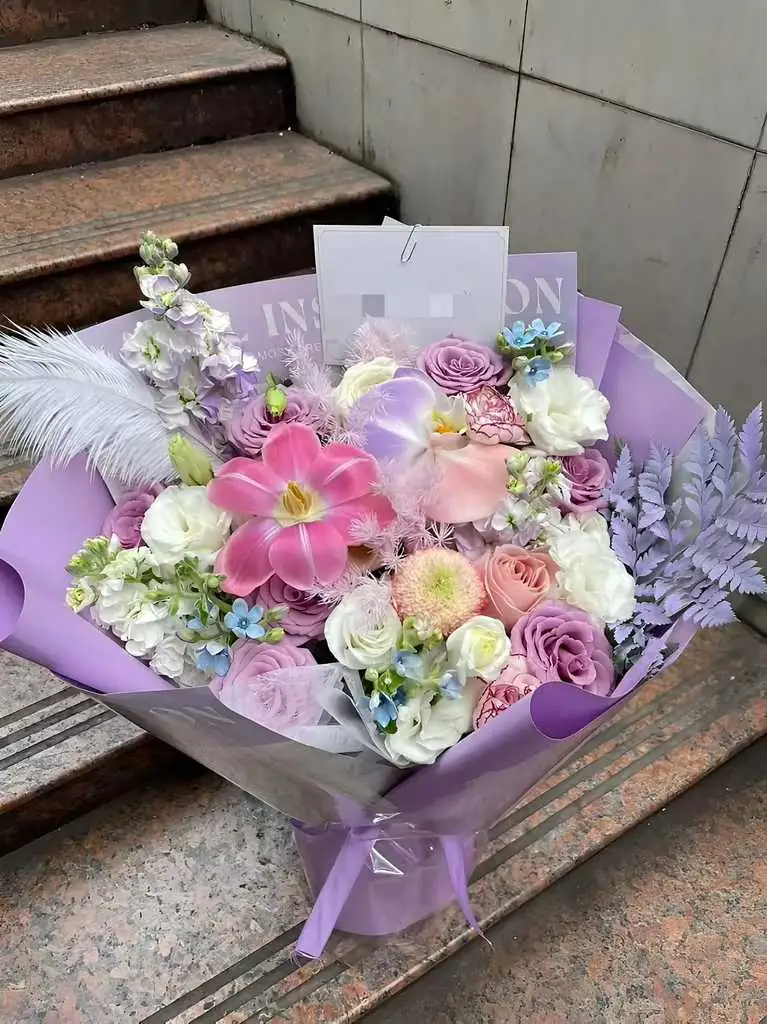
EzMaker AI vs EzCreate background replacement comparison original photo
EzMaker AI EzCreate
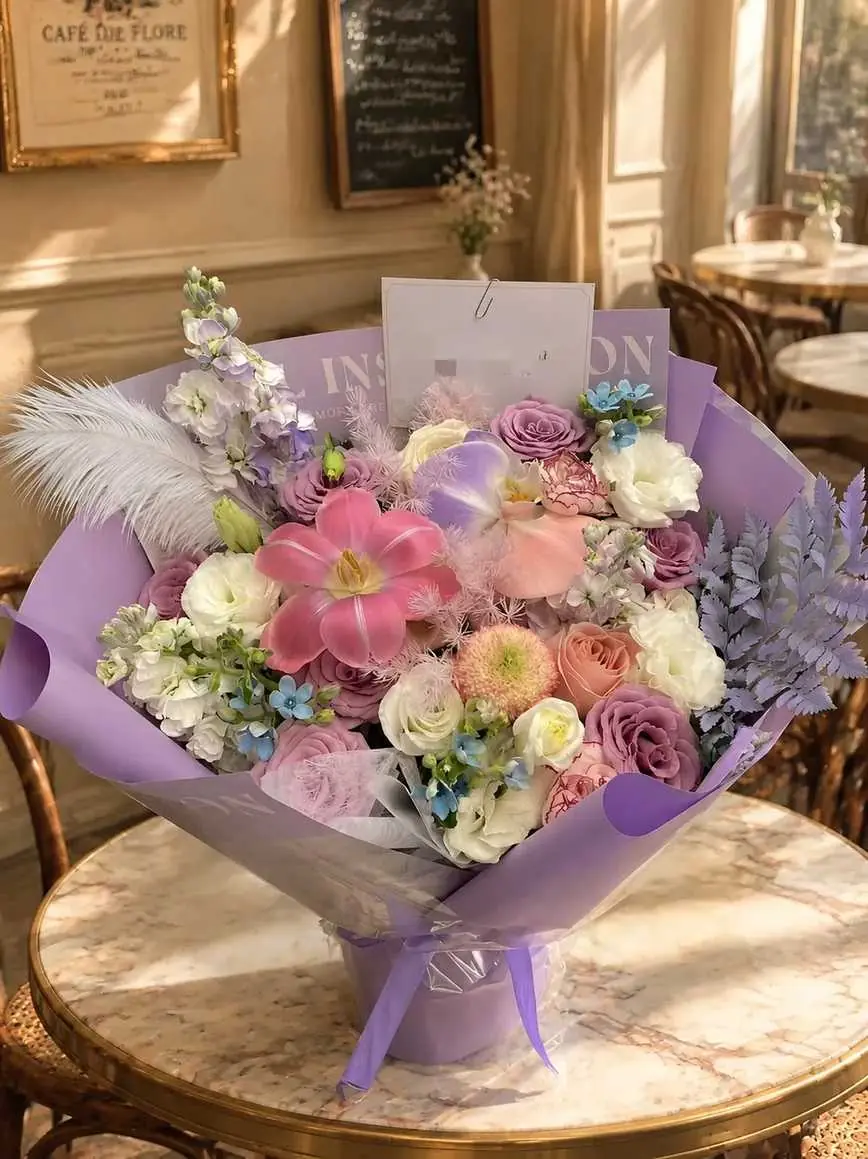
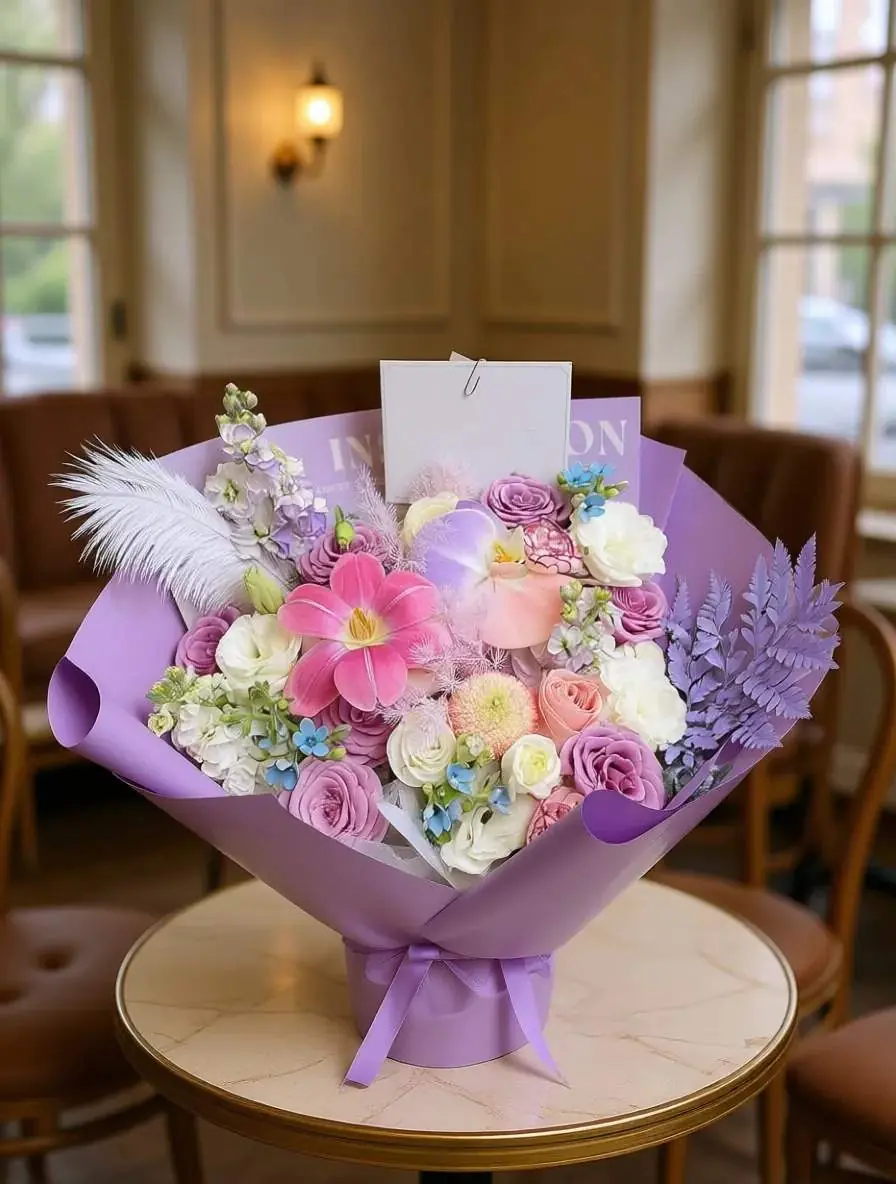
EzMaker AI background replacement comparison result EzCreate background replacement comparison result

Both editors successfully completed the task. The original environments were replaced with indoor café scenes while keeping the flowers as the main subjects. They preserved the bouquets’ shape, colors, and packaging details well, with no noticeable changes to the original products.
EzMaker AI delivered excellent results in lighting integration and image clarity. The bouquet blended more naturally with the new environment, creating a realistic look as if it had been photographed in the café. The overall result was closer to a professional commercial photo. The mosaic on the card and tape were also preserved.
EzCreate applied a background blur effect, making the subject stand out clearly. The overall composition looked natural and worked well for product showcase images. It replaced the mosaic on the card with a white area. While the edge processing was clean, the background atmosphere and lighting interaction were simple.
Bottom Line: EzMaker AI delivers a more realistic background replacement with better lighting integration and environmental blending. EzCreate produces clean results with stronger subject focus.

Test 2: Remove Unwanted Objects Without Affecting the Background

Prompt: Completely remove passers-by, clean professional removal, realistic background fill, no traces or artifacts left Settings:
Aspect Ratio: Default
AI Model: Default
EzMaker AI vs EzCreate passers-by removal comparison original photo
EzMaker AI EzCreate
EzMaker AI passers-by removal comparison result EzCreate passers-by removal comparison result

Both tools removed the people with no obvious human outlines or leftover color patches. EzMaker AI had a more natural result, with stronger environmental blending. After removing the bystanders, the image quality remained consistent. However, it also removed the two railings that were present in the original image.
EzCreate preserved the original composition and surrounding environment well. However, the background reconstruction was not really good and appears slightly blurry.
Bottom Line: EzMaker AI not only removed unwanted people but also did a better job reconstructing the hidden areas while maintaining the original quality. Additionally, EzMaker AI not only removes unwanted objects on its own, but it also allows you to select the areas you want to remove. EzCreate is a good choice for simpler tasks such as quickly removing people from photos.

Test 3: Restore the Quality of an Old Photo

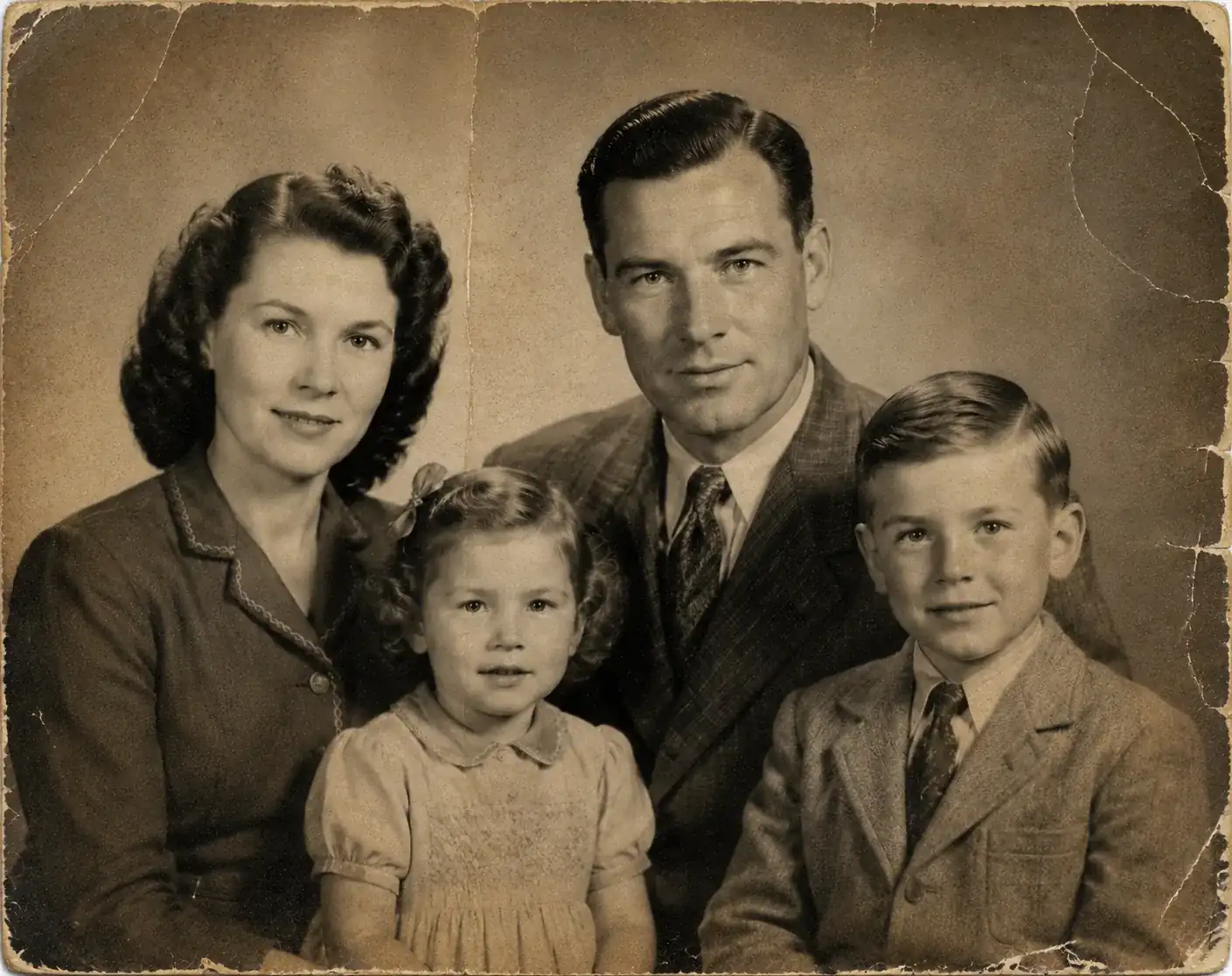
Prompt: Professional old photo restoration, repair all scratches tears folds and stains, remove dust spots and fading, restore original colors and contrast naturally, sharpen details, enhance faces gently while keeping authentic vintage look, high resolution, non-destructive restoration Settings:
Aspect Ratio: Default
AI Model: Default
EzMaker AI vs EzCreate quality restoration comparison original photo
EzMaker AI EzCreate
EzMaker AI quality restoration comparison result EzCreate quality restoration comparison result

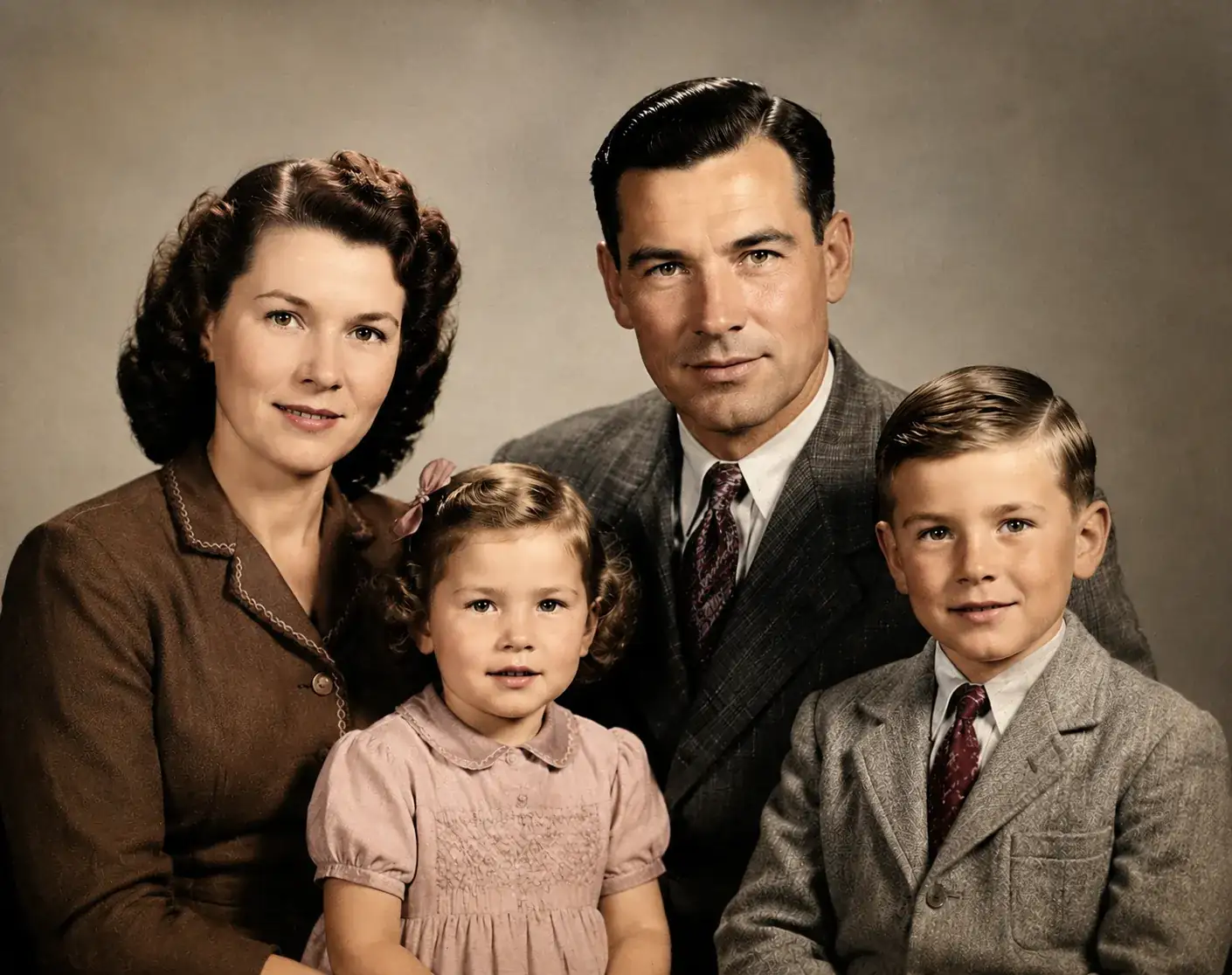
The two tools took different approaches to restoration. EzMaker AI focused more on quality and detail enhancement. Facial features, hair details, clothing textures, and other elements became much more visible. However, because the enhancement was more aggressive, some skin textures and details showed a slight AI-generated feel.
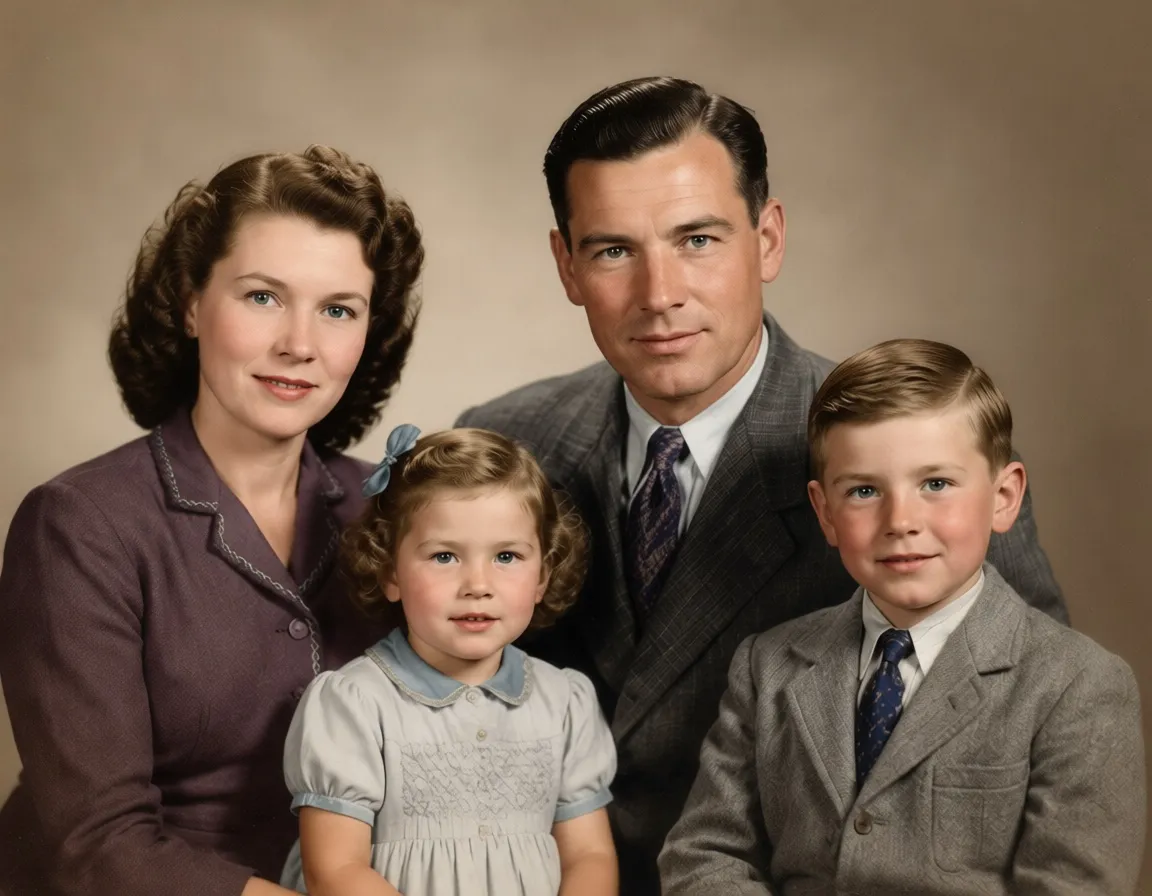
EzCreate delivered a more realistic result in terms of facial restoration, skin tones, and color balance. Facial features, proportions, and the original atmosphere of the photo were preserved better, without noticeable over-coloring or excessive sharpening.
Bottom Line: EzCreate is a better AI photo editor for natural vintage restoration.

Test 4: Transform a Portrait into a Different Creative Style

Prompt: Restyle the person in the exact style of a superhero, keep recognizable face. Settings:
Aspect Ratio: Default
AI Model: Default
EzMaker AI vs EzCreate style transformation comparison original photo
EzMaker AI EzCreate
EzMaker AI style transformation comparison result EzCreate style transformation comparison result

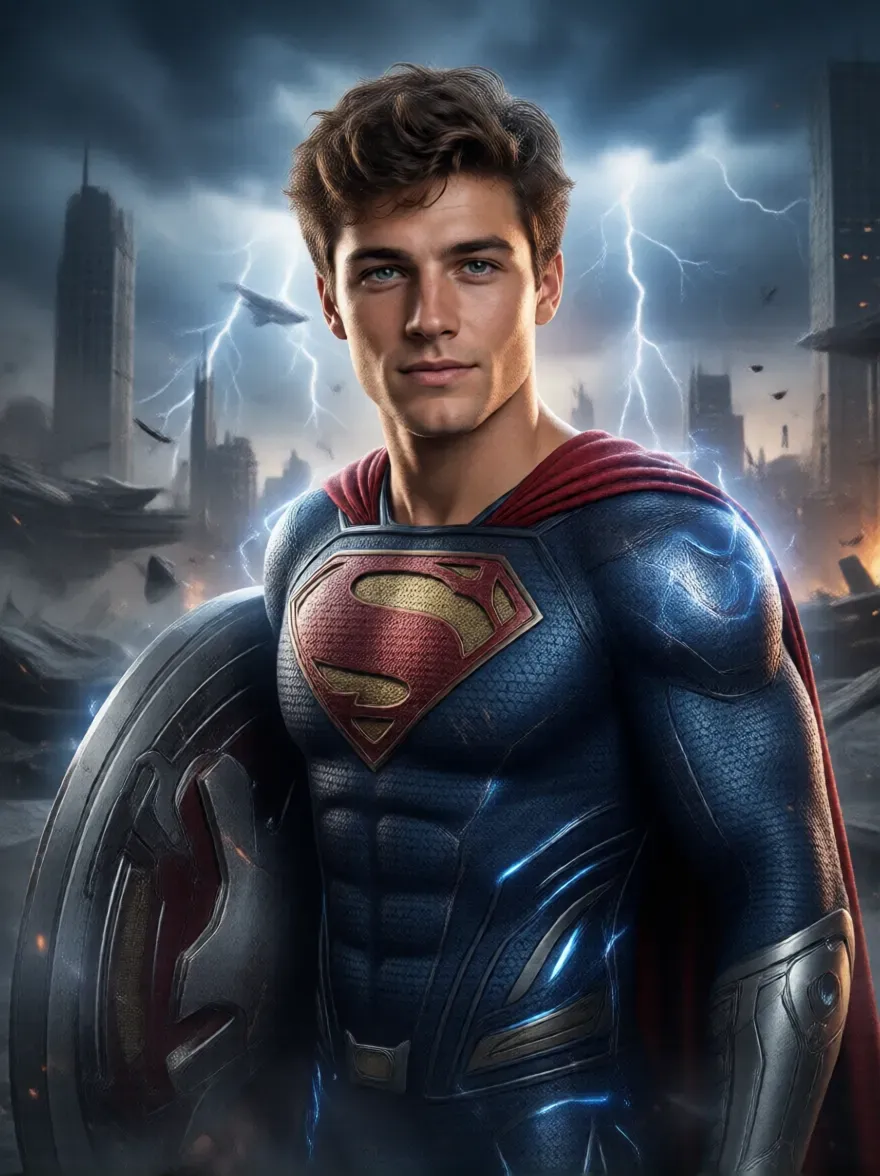
EzMaker AI generated more of a game character artwork. It applied a more stylized transformation by adding visual effects such as lightning and energy elements. Compared with EzCreate, the result felt less like a real photograph and more like a fantasy character design.
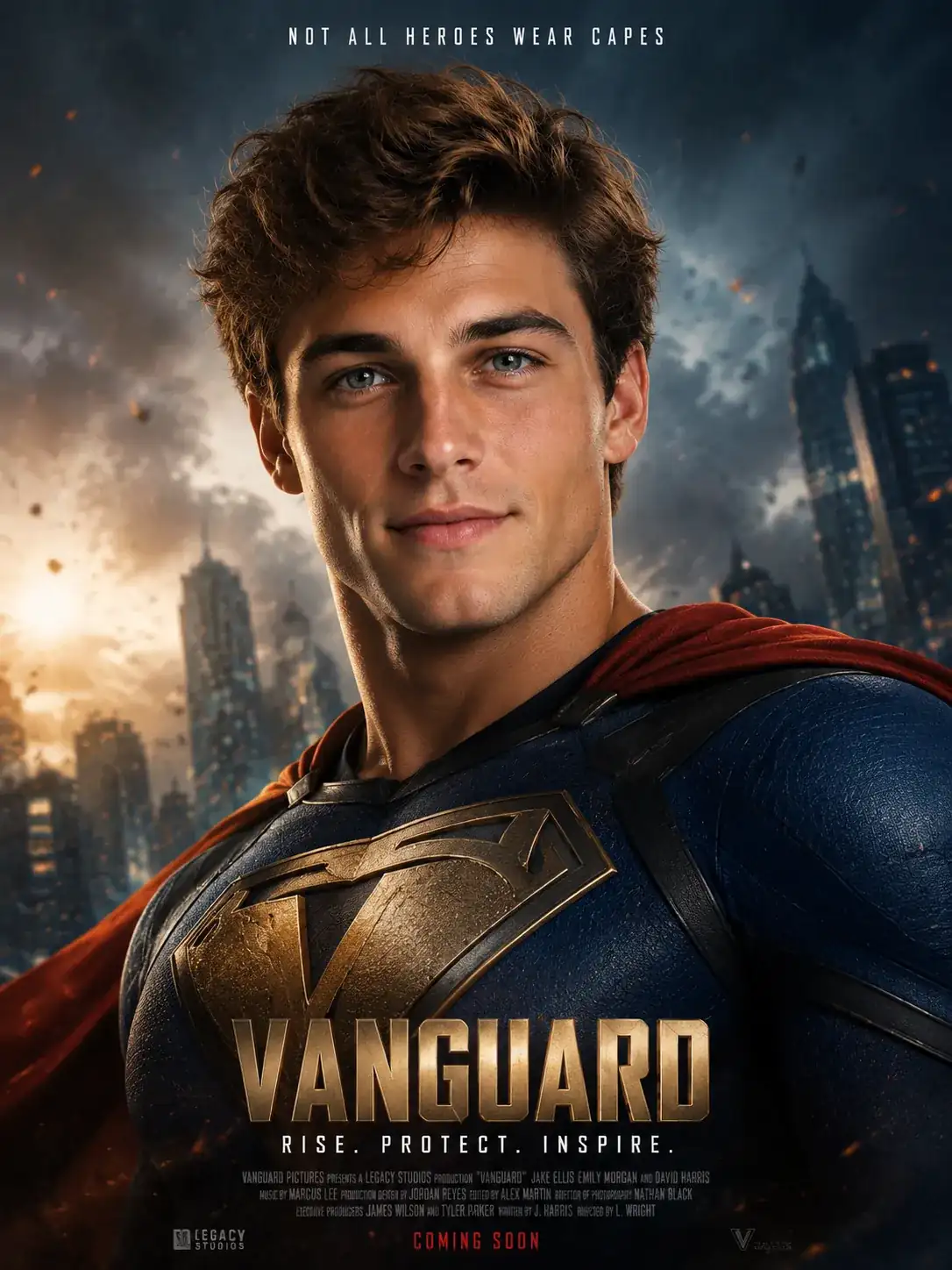
EzCreate produced a superhero movie poster style. While preserving the original facial features and hairstyle, it transformed the portrait into a cinematic character image. The costume, city background, lighting, and color grading blended well together, which looks similar to a Hollywood superhero poster.
Bottom Line: EzCreate for realistic cinematic transformations, while EzMaker AI is better suited for more stylized character designs.

Test 5: Turn a Product Photo into an Advertisement Post

Prompt: Create a professional advertisement image for this product with a premium background and commercial lighting. Settings:
Aspect Ratio: Default
AI Model: Default
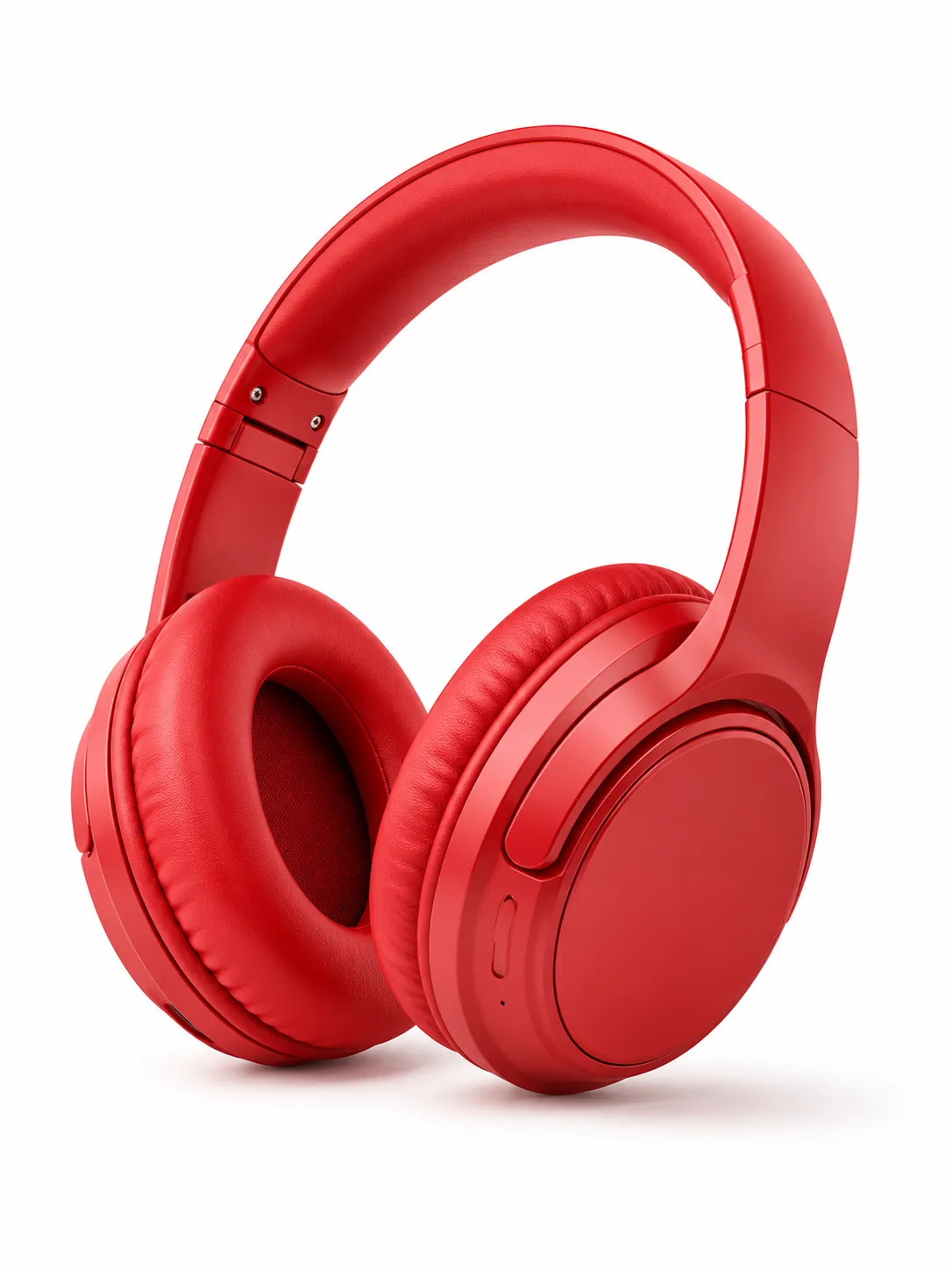
EzMaker AI vs EzCreate product post comparison original photo
EzMaker AI EzCreate
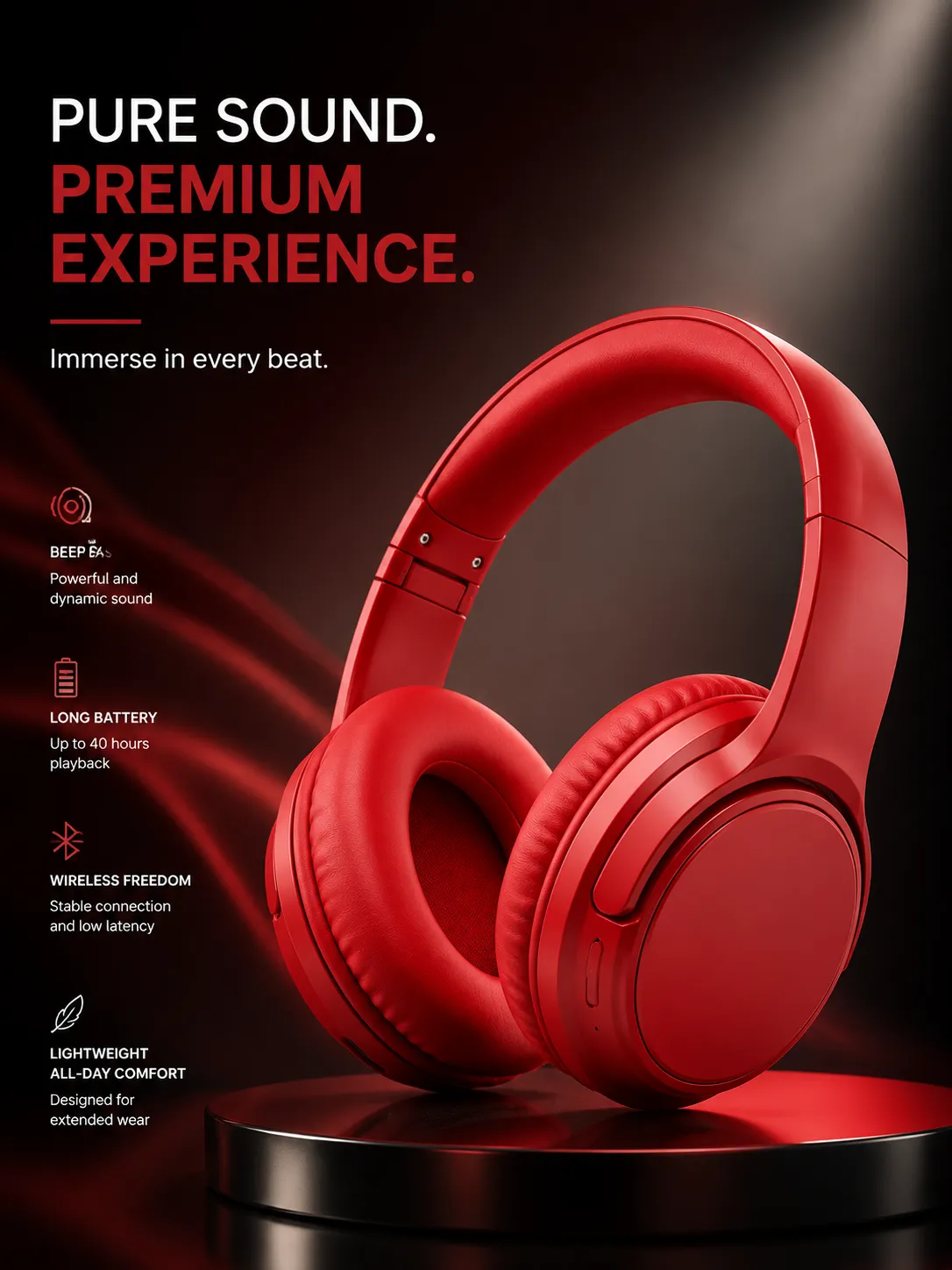
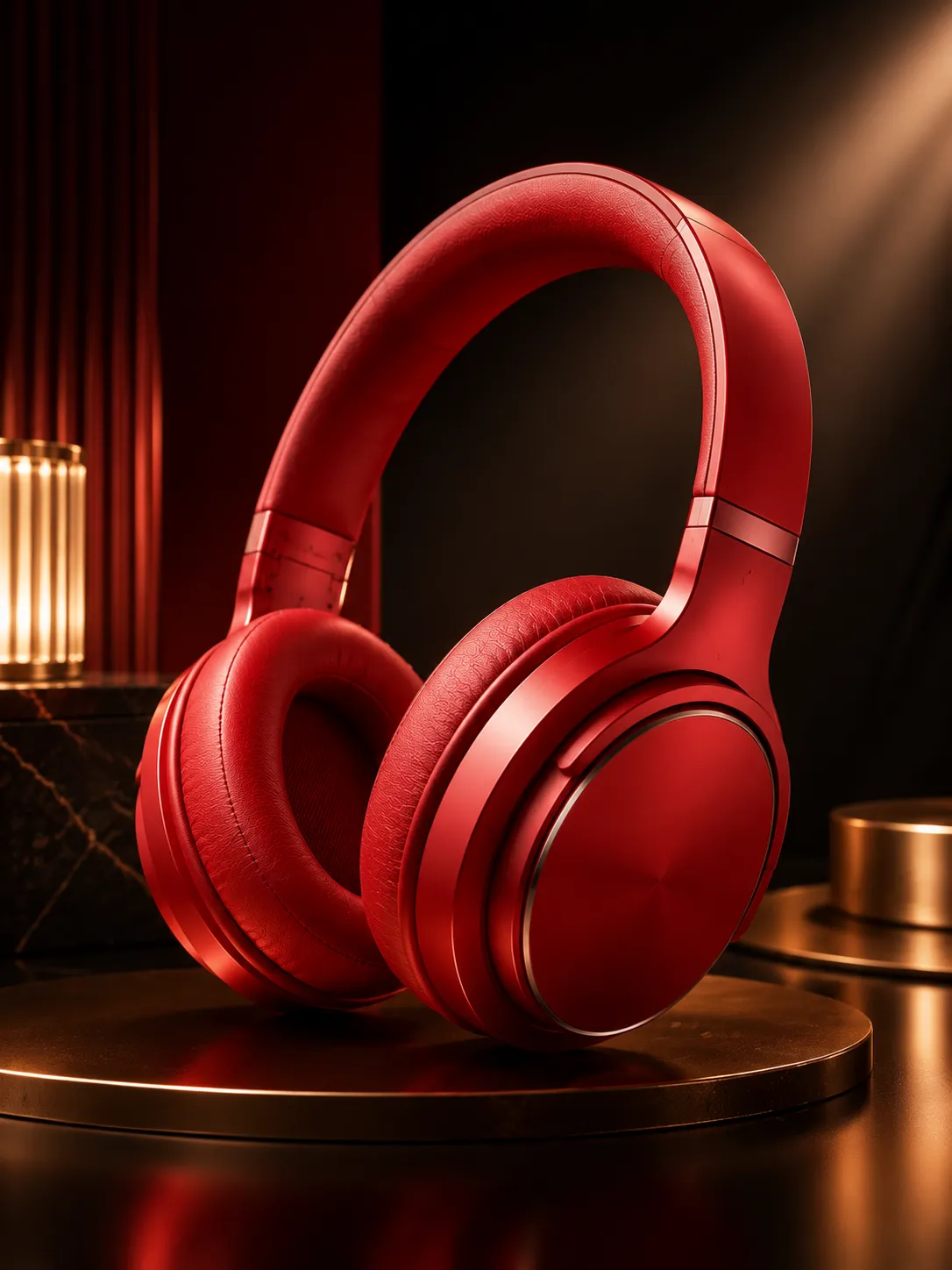
EzMaker AI product post comparison result EzCreate product post comparison result

Both tools gave us a high-quality image. The main difference is that EzMaker AI delivered a result closer to a professional product advertisement. It not only preserved the details of the headphones but also recreated a studio environment. The lighting, surface details, and branded layout added a premium feel to the image. It even generated a suitable tagline to enhance the promotional effect.
However, EzCreate changed the details of the original headphones and created a similar one. With further refinement, such as adding marketing copy and graphic design elements, the result could be turned into a perfect post.
Bottom Line: EzMaker AI for creating professional marketing visuals directly from product photos.

Test 6: Change the Aspect Ratio While Keeping the Main Elements

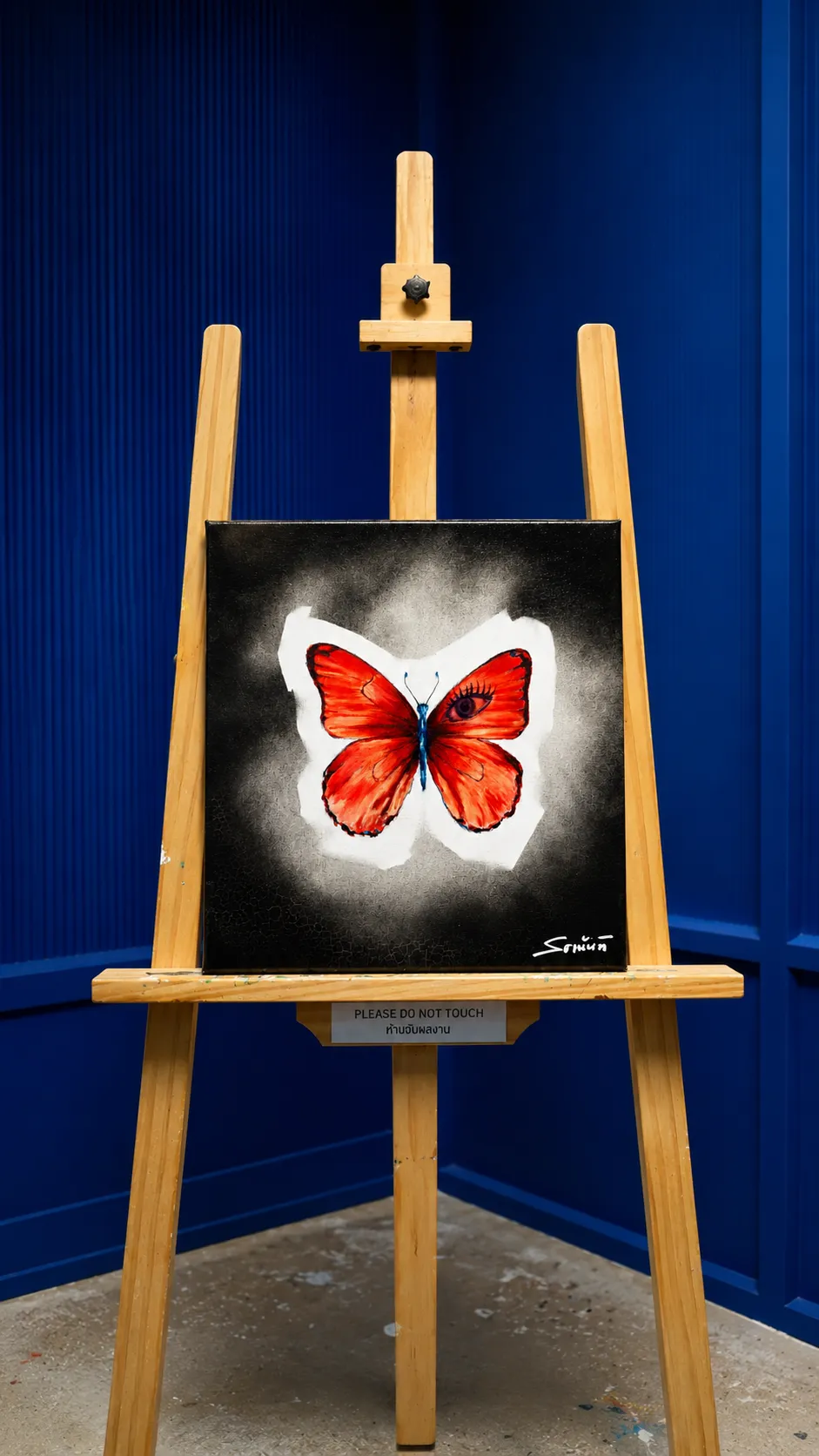
Prompt: Convert this image into a 9:16 format while keeping the main subject and expanding the background naturally. Settings:
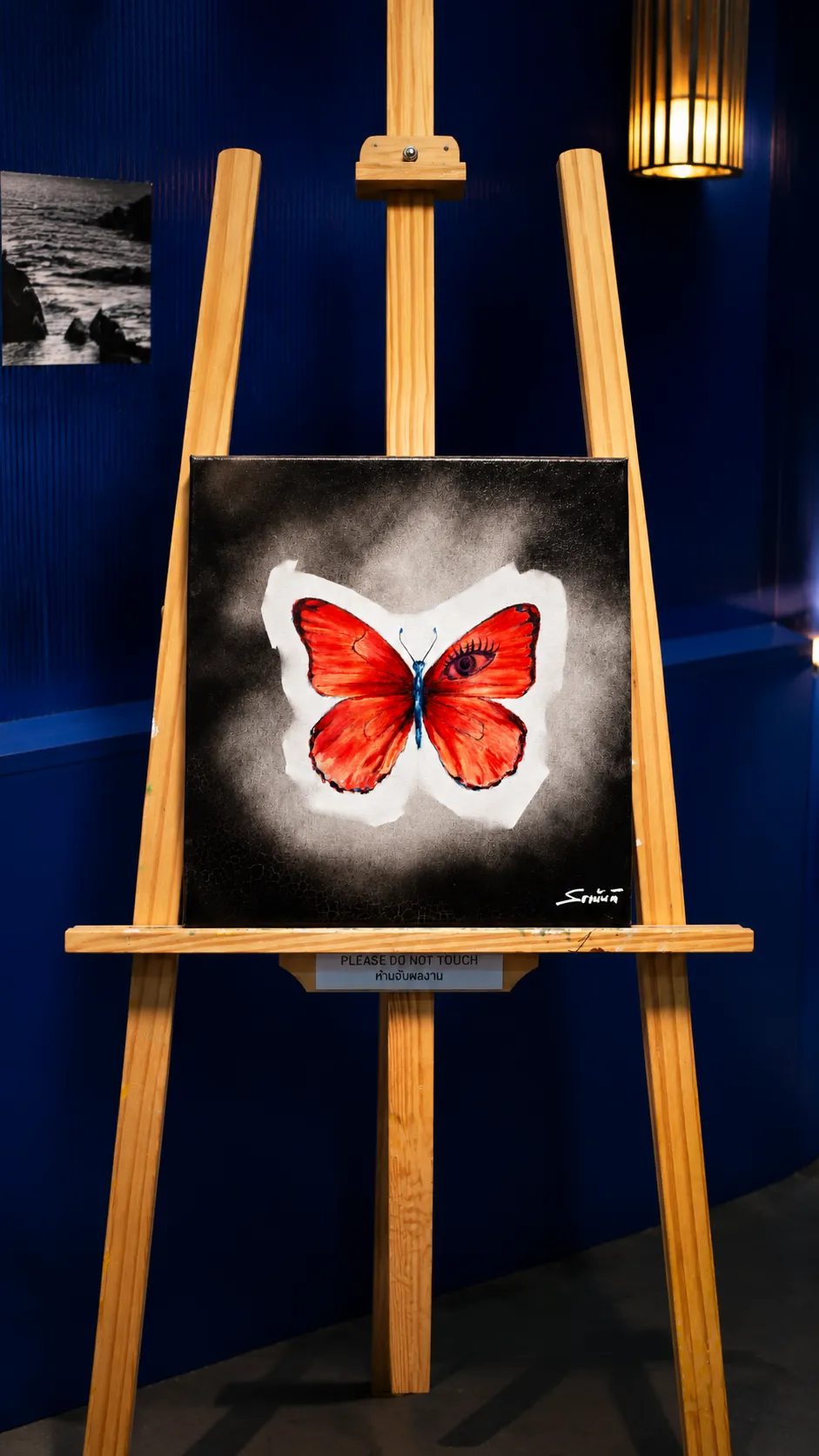
Aspect Ratio: From 4:3 to 16:9
AI Model: Default
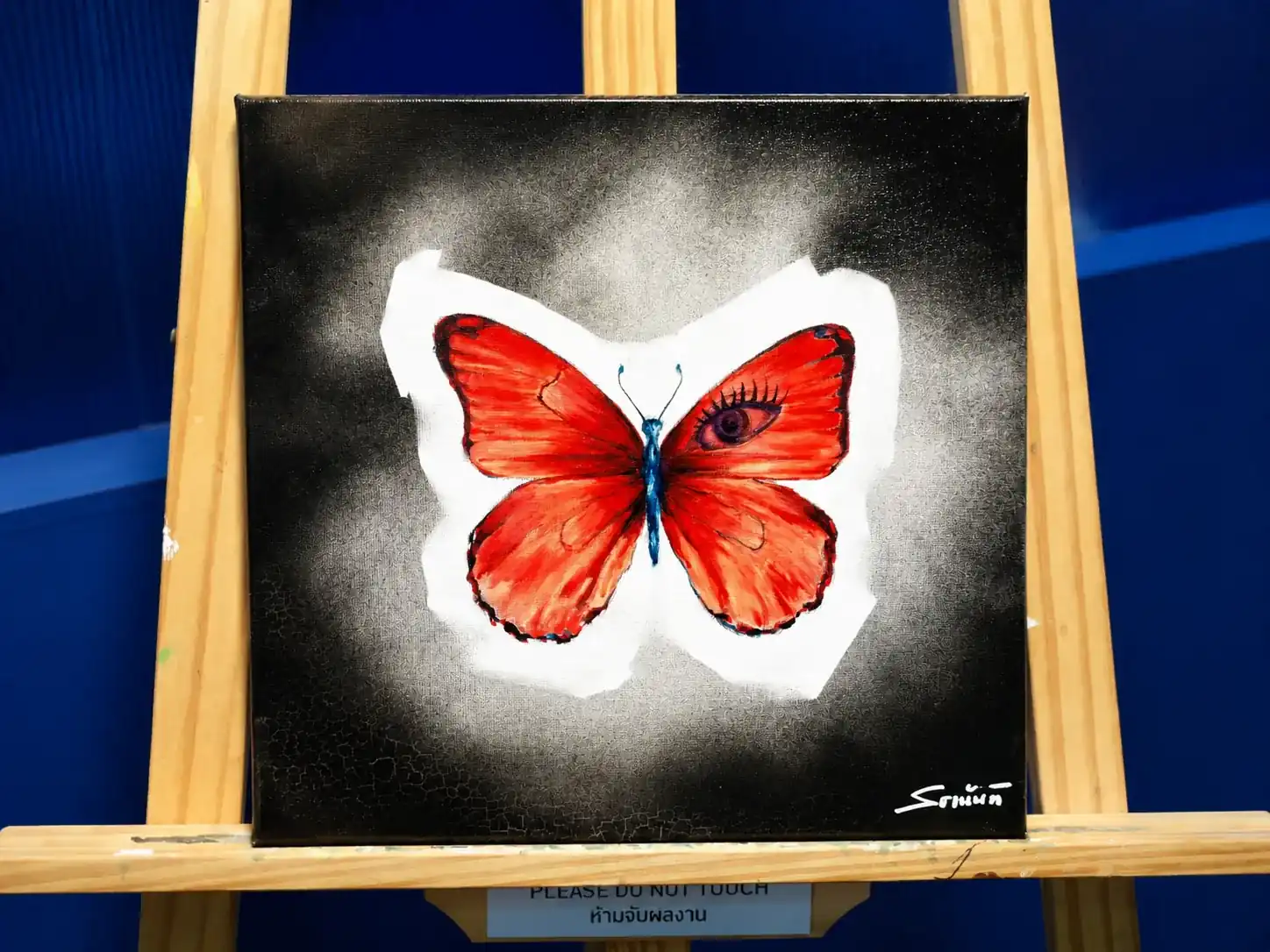
EzMaker AI vs EzCreate aspect ratio conversion comparison original photo
EzMaker AI EzCreate
EzMaker AI aspect ratio conversion result EzCreate aspect ratio conversion result

EzMaker AI made the image more suitable for exhibition displays. The added lighting fixtures improved the overall realism. However, the viewer’s attention may be distracted by the large blue background and the structure of the easel.
EzCreate’s background expansion was more restrained and avoided adding extra elements, resulting in a higher level of authenticity. The downside is that the artistic atmosphere and sense of spatial depth were not as rich as EzMaker AI’s result.
Bottom Line: EzMaker AI creates more dramatic scene expansion, while EzCreate maintains stronger original image consistency.

Test 7: Generate a Photo Based on a Prompt

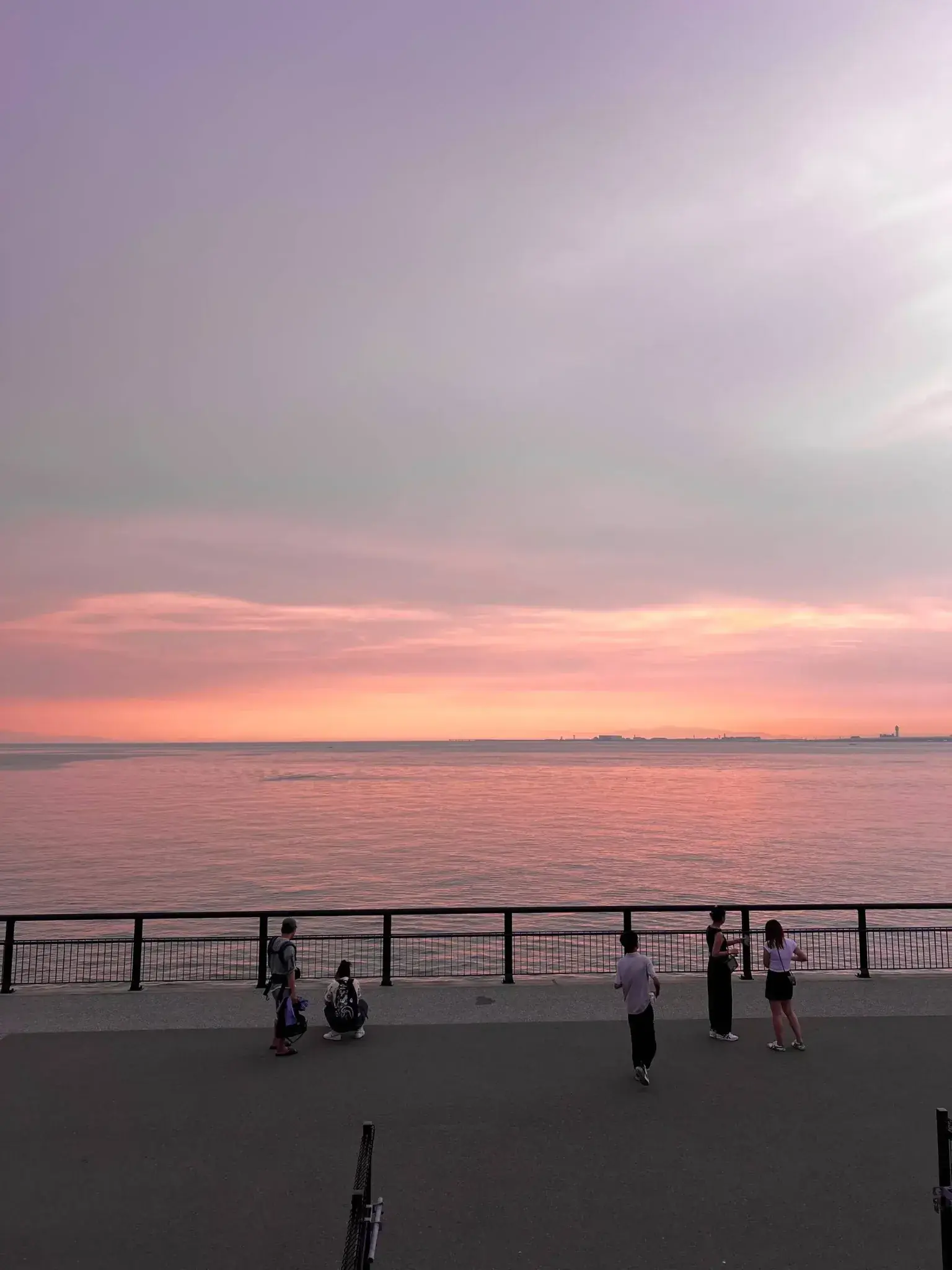
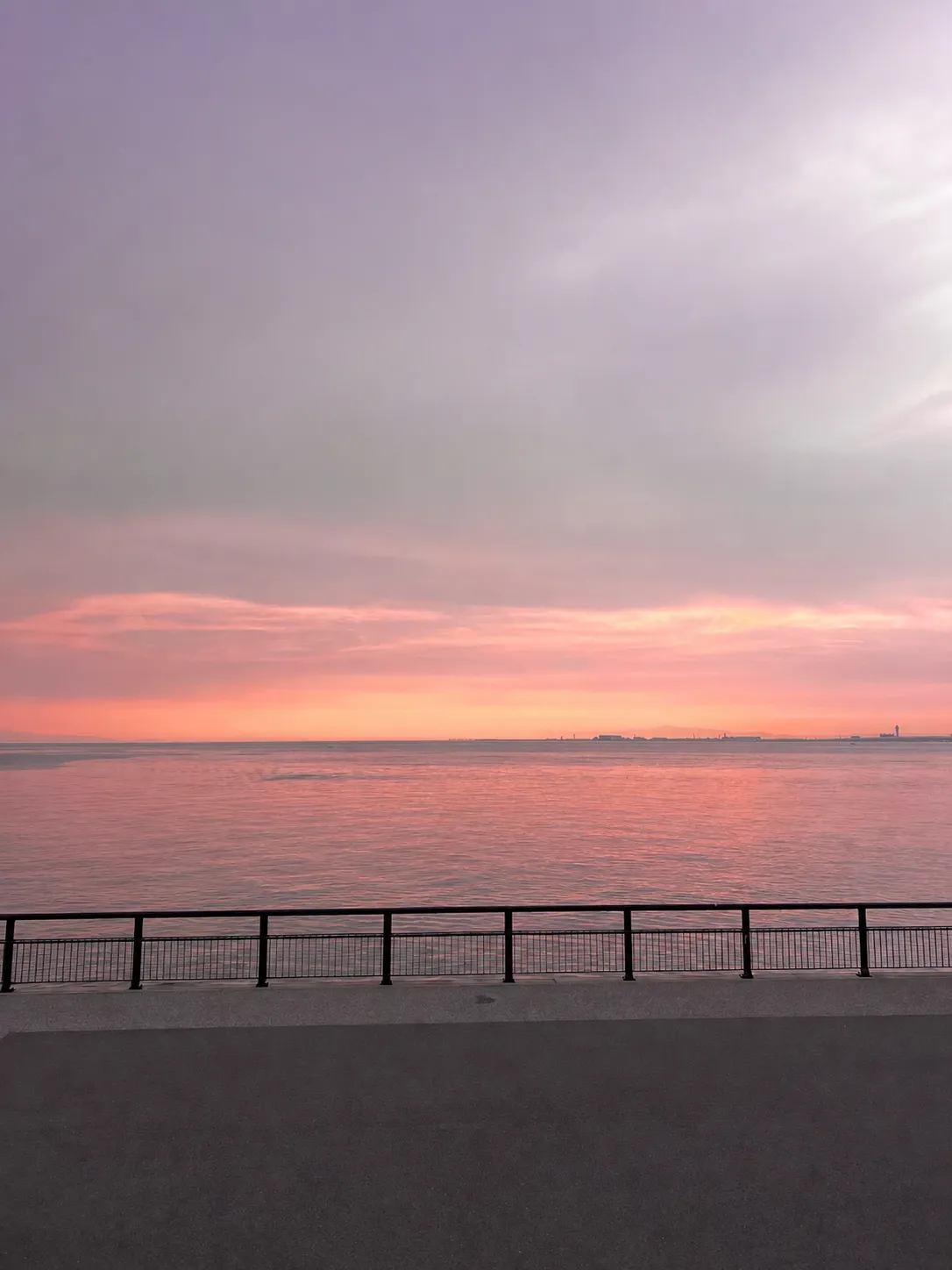
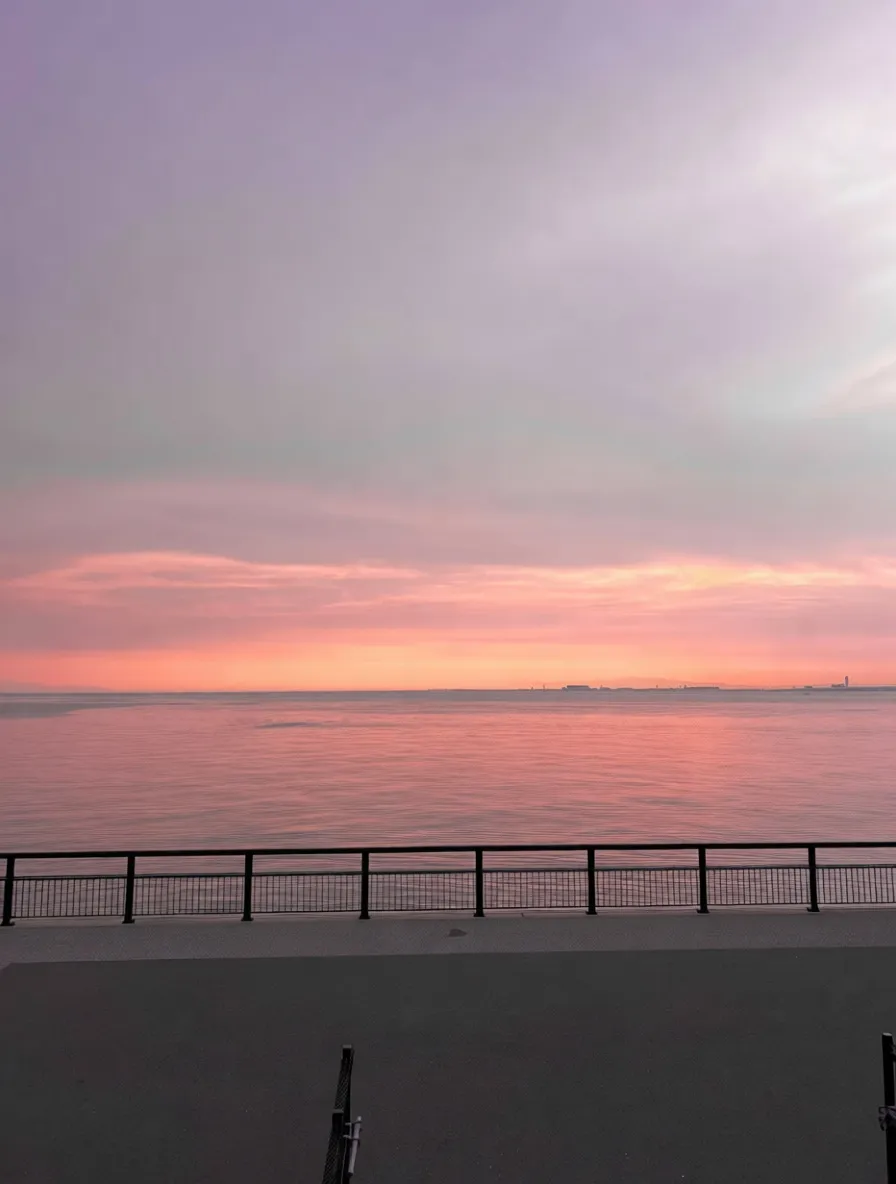
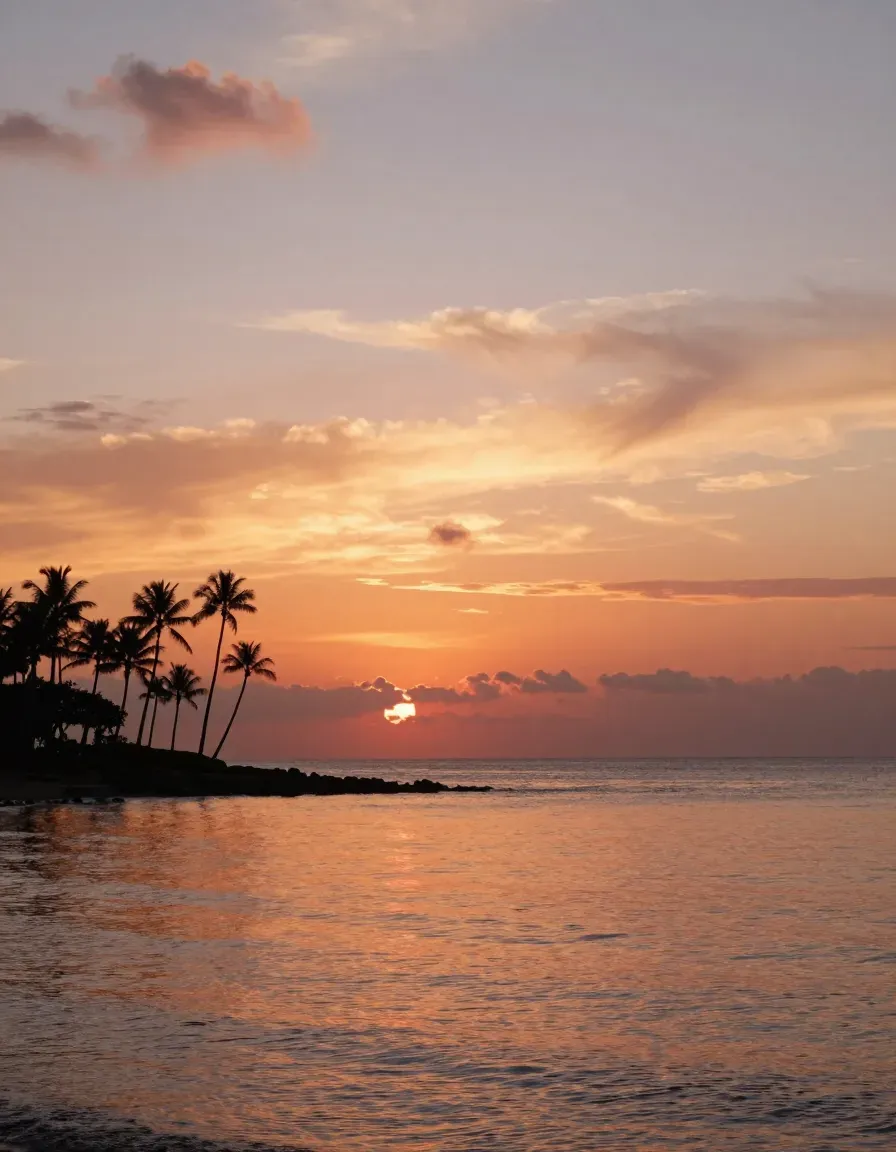
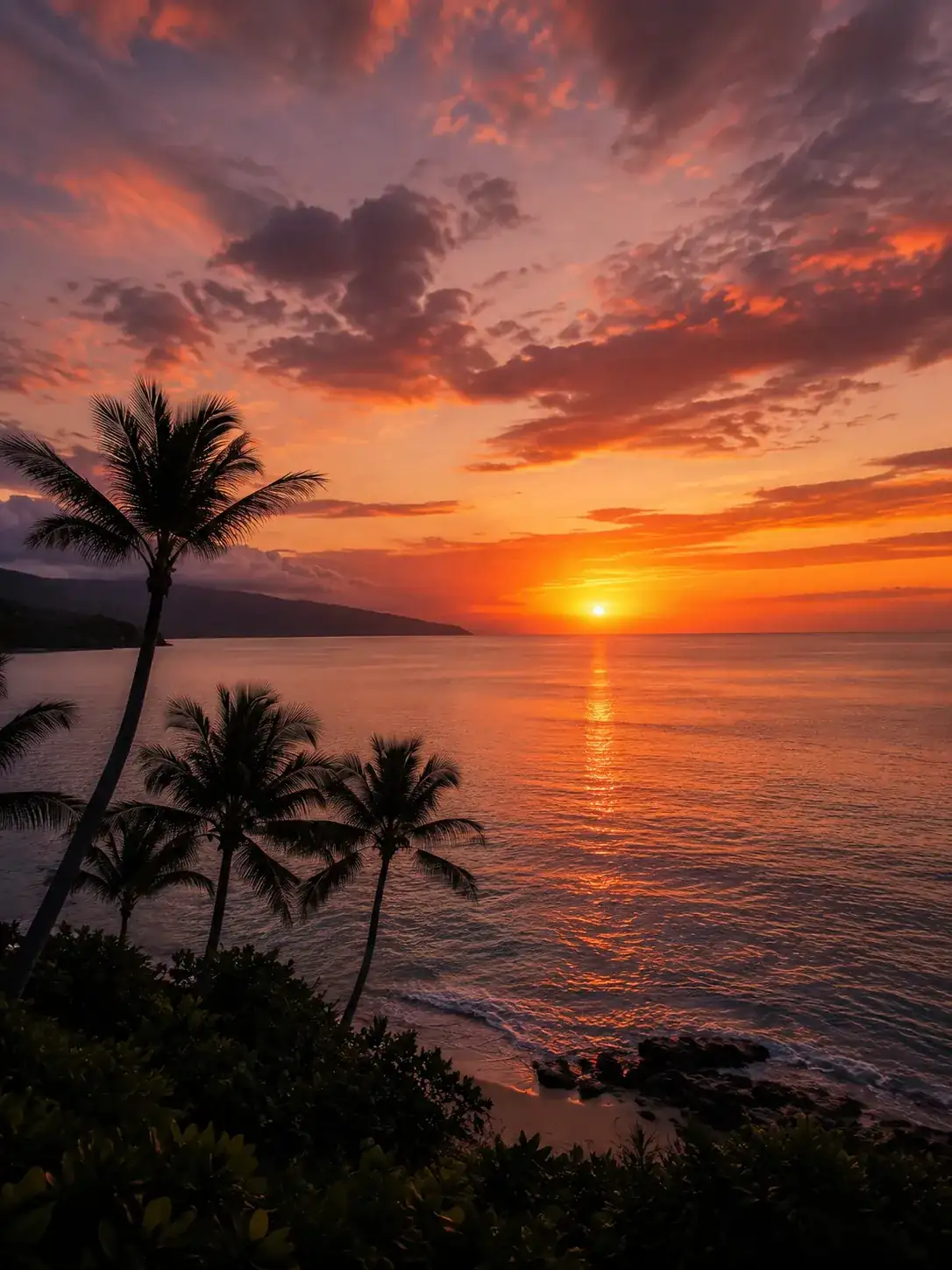
Prompt: A golden-hour sunset over a calm ocean, warm orange and pink sky reflected on the water, silhouettes of palm trees on the shore, soft cinematic clouds, highly detailed, photorealistic. Settings:
Aspect Ratio: 3:4
AI Model: Default
EzMaker AI EzCreate
EzMaker AI text to image landscape generation result EzCreate text to image landscape generation result

While EzMaker AI captured the theme of a seaside sunset and coconut trees, the image quality resembled that of a smartphone photo.
In contrast, EzCreate made images with richer depth and layering, achieving an aesthetic akin to high-end photography or cinematic visuals.

We also tested their portrait generation capabilities to evaluate how well they handle human features.

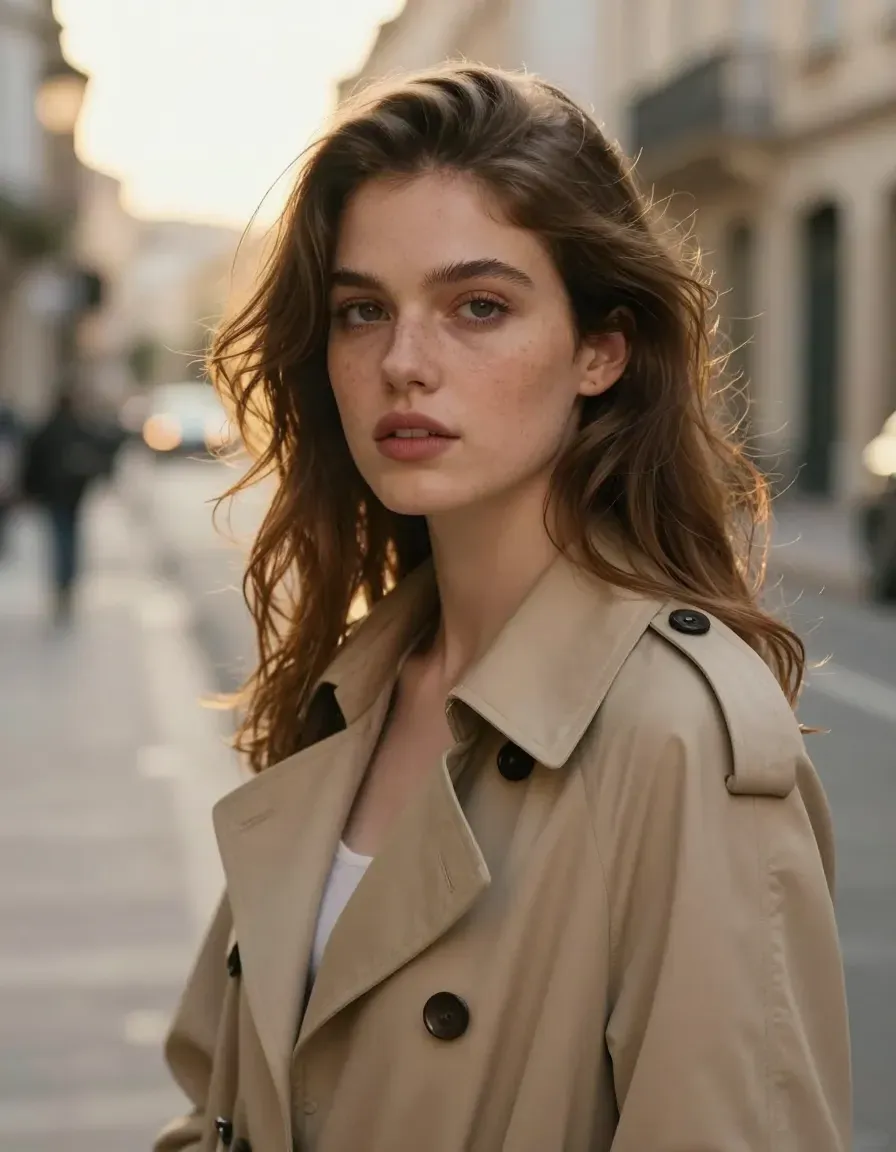
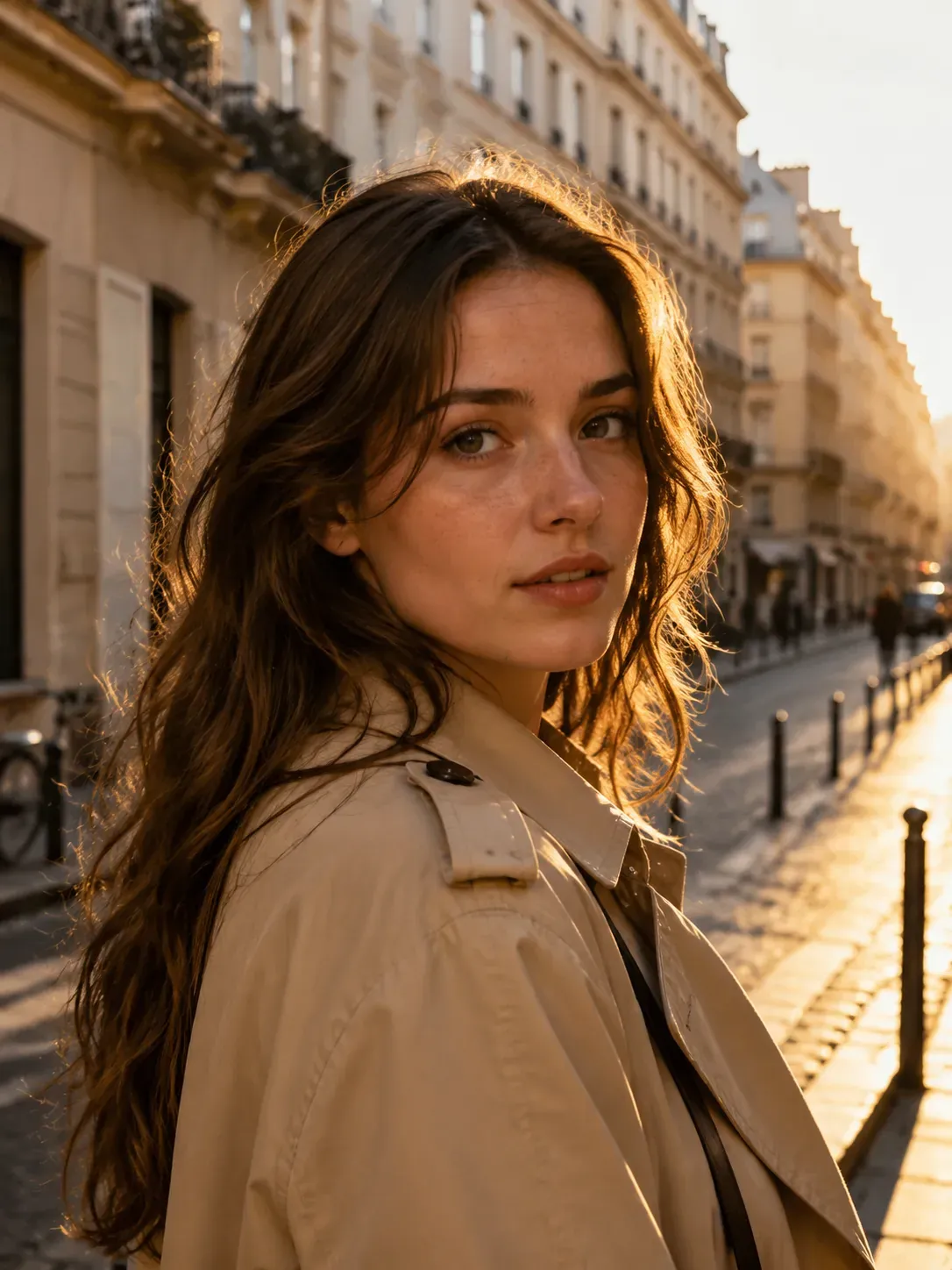
Prompt: A realistic portrait of a young woman with natural makeup, soft wavy hair, and subtle freckles, wearing a beige trench coat. She is standing on a quiet European street during golden hour, with warm sunlight, shallow depth of field, cinematic photography style, realistic skin texture, high detail. Settings:
Aspect Ratio: 3:4
AI Model: Default
EzMaker AI EzCreate
EzMaker AI text to image portrait generation result EzCreate text to image portrait generation result

EzMaker AI exceled in producing natural, lifelike results, featuring realistic skin tones and vivid, expressive facial features.EzCreate produced a photo with a professional aesthetic, capturing rich detail and exquisite visual texture.

Bottom line: In terms of text to image generation, EzMaker AI focuses on natural and realistic results, while EzCreate stands out with stronger composition, lighting, and cinematic visual impact.

Note: Text to image generation results can vary depending on factors such as prompt complexity, wording, generation settings, model versions and randomness. Different AI models may perform better for different types of content, such as portraits, landscapes, or creative styles. To reduce randomness, we generated 3–5 outputs for each prompt and selected the most representative results for comparison.
EzMaker AI vs EzCreate — Pricing

EzMaker AI - Free & Unlimited Access

EzMaker AI offers a simple unlimited usage model. Users can access AI image editing features without worrying about credits or generation limits.

EzCreate - Credit-Based & Upgrade Systems

EzCreate combines a credit-based system with a subscription model for business. Users receive free daily credits to explore the platform, while paid users can purchase one-time credit packages for additional usage. Credit consumption varies depending on the AI ​​model and feature complexity. More advanced and high-quality models will cost more credits.

EzCreate Pricing Plan Page

EzMaker AI or EzCreate, Can You Make a Choice?

Open EzMaker AI if:

  • You are a beginner who prefers a simple workflow and straightforward AI editing features.
  • You want an AI tool that focuses on accuracy and consistency while keeping the original image details.
  • You want more control over background replacement and object removal.
  • You value more natural and realistic results for image generation.
  • You want unlimited access without worrying about credits, daily limits, or additional usage costs.

Open EzCreate if:

  • You want to have more flexibility to try different AI models.
  • You are a content creator who wants to create more dramatic lighting, richer details, and professional photos with prompts.
  • You care more about creating an account and managing your history for a longer time.
  • You are an AI enthusiast who enjoys testing new generation models and comparing different creative outputs.

In Conclusion

After testing both AI photo editors with the same images and prompts, we found that each tool has its own strengths.
EzMaker AI stands out for users who want a quick and easy-to-use AI photo editing experience. It performed especially well in making edits while maintaining image quality. For beginners, creators, and users who frequently edit images, EzMaker AI will offer a good experience.
EzCreate performs well for creative experiments and users who want more control over AI model choices. For AI image generation, EzCreate has an advantage with stronger cinematic quality.
Still not sure which AI image editor is right for you? Try our free AI photo editor to see the difference.

Frequent Asked Questions

1. Which one is better, EzMaker AI or EzCreate?

It depends on what you need. EzMaker AI is better for creative images, while EzCreate works well on professional visuals with the latest AI models.

2. Which tool is better for background replacement?

EzMaker AI is a better choice if you want the new background to match the original lighting. EzCreate works well for simple background changes.

3. Can both tools remove unwanted objects from photos?

Yes, both can remove unwanted objects like people or distractions. The difference is how naturally they fill in the missing background.

4. Can AI tools improve low-quality images?

Yes, AI photo upscaling can make images clearer and improve details.

5. Can AI editing change important details of a product?

Yes, sometimes AI may slightly change small details like text, logos, or textures. Always check the final image before using it commercially.

6. How can I write better AI image prompts?

More details usually help AI understand your idea better. Try adding information about the subject, style, lighting, and background.

7. Do these tools add watermarks to images?

The two AI photo editors support exporting without watermarks.

8. Are my uploaded photos safe?

AI tools usually have privacy protection measures for uploaded images. For sensitive photos, it is still a good idea to check the privacy policy first.