

Photoroom vs EzMaker AI: Background Remover Tests
Photoroom has a clear eye for what makes a product look worth buying. Its editing tools go beyond removing a background, helping sellers turn a plain product photo into a polished shop image. But if you mainly need a clean cutout, how much of that toolkit will you actually use? That’s where a comparison with EzMaker AI becomes useful.
Photoroom free AI background remover and EzMaker AI approach those next steps differently. Photoroom provides an extensive editing tools built around product photography. EzMaker AI keeps its background-removal workspace focused on individual images, with free access to background colors, replacement images, blur, and PNG downloads.
TL;DR: If you need a quick, free way to cut out a single subject → EzMaker AI. If you need batch editing, AI-generated backdrops, and pro templates → Photoroom background remover Pro.
Photoroom and EzMaker AI in Brief
EzMaker AI vs Photoroom at a Glance
| Photoroom vs EzMaker AI | Photoroom | EzMaker AI |
|---|---|---|
| Automatic background removal | ✓ | ✓ |
| Transparent PNG download | ✓ | ✓ |
| Solid background colors | ✓ | ✓ |
| Upload your own background | ✓ | ✓ |
| Free access to all tools | × | ✓ |
| No signup requirements | × | ✓ |
| AI Backgrounds | ✓ | × |
| Batch processing | ✓ | × |
| JPG / WebP / AVIF downloads | ✓ | × |
Features shown apply to the reviewed workflows. Photoroom access depends on the plan. All current tools in EzMaker’s background-removal workspace are free.
Photoroom Background Remover

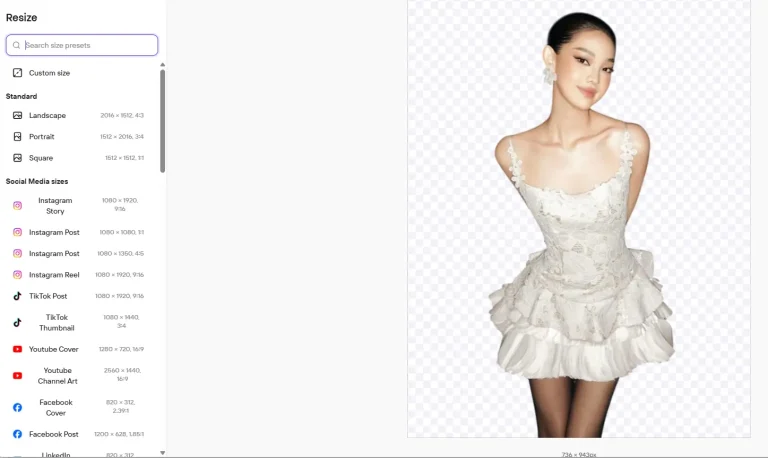
Photoroom background remover is part of a broader photo-editing platform with a strong focus on product imagery. After background removal, the subject and background can be edited separately, with controls for positioning, adjustments, shadows, and other effects. Size presets help users prepare images for different social platforms and marketplaces.
Photoroom’s platform presets are useful when one image needs several versions. Its Resize panel includes named options for social channels and marketplaces, reducing the need to look up dimensions and enter them manually.
Pros
- Separate subject and background controls offer more flexibility after removal
- Offers room to develop a consistent look across product images
- Batch processing and product photography tools support larger editing workflows
- Suits users whose editing needs extend beyond the initial cutout
Cons
- The Free plan is restricted to personal use
- Access to features and usage allowances depends on the plan
- The broader workspace takes more time to learn
EzMaker AI Background Remover
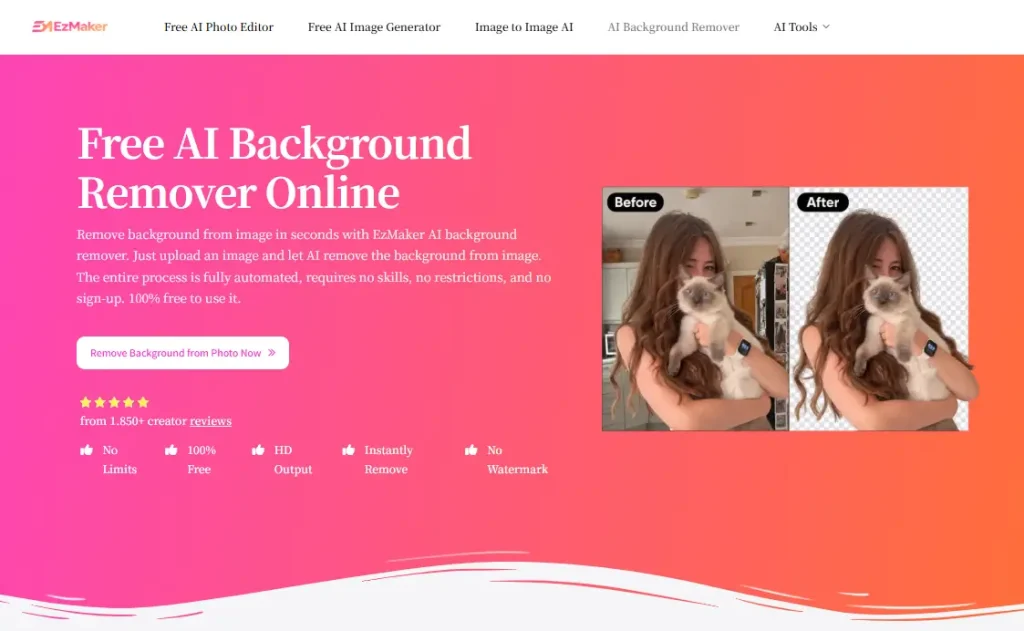
EzMaker AI’s background remover is a browser-based tool for removing and replacing image backgrounds. Once the subject is isolated, you can keep the background transparent, choose a solid color, or add a preset or uploaded image. Background blur is also available within the same workspace.
EzMaker AI brings a range of everyday image tasks into one website. Beyond removing backgrounds, users can generate images from text, erase unwanted objects, restore old photos, or experiment with a different hairstyle or outfit. Its focused layout keeps those everyday tasks easy to navigate. With its tools currently available for free, the site offers room to try different edits without committing to a subscription.
Pros
- Free background removal and other features
- Background options are easy to explore without navigating a full design editor
- Straightforward controls for occasional, individual edits
Cons
- No batch processing; images must be handled individually
- Downloads are limited to PNG
- Fewer composition controls
How to Test a Background Remover
The downloaded cutout may reveal missing details or rough edges, while the editing process itself can involve unexpected delays. Using the same source images in both background removers provides a fair basis for comparison across four areas.
Check Subject Preservation and Background Removal
Successful background removal leaves the intended subject intact, including accessories, product labels, and smaller objects that belong in the frame. Missing parts and leftover scenery both affect the usefulness of the result.
Check Edge Detection Accuracy
The quality of a cutout often becomes apparent around hair, fur, and thin straps. Jagged boundaries can make these areas look roughly clipped, while excessive smoothing can erase their natural texture. At a closer view, fine details should remain recognizable, with minimal fringing from the original background.
Check the Fit with a New Background
A cutout that looks clean on a checkerboard may reveal problems when placed in a new setting. Pale halos become more noticeable against dark colors, and glass may still contain traces of the original scene. Placing both outputs on the same light and dark backgrounds makes these differences easier to assess without additional effects influencing the comparison.
Check Processing Speed and Ease of Use
The time needed to obtain a usable image includes uploading, processing, any necessary adjustments, and downloading. Clear controls and responsive previews can make that process more straightforward, especially for occasional users. Several attempts with different image sizes offer a more useful indication of everyday performance than a single timed upload.
Background Removal Cases
We uploaded the same two images to EzMaker AI and Photoroom. Photoroom was tested on its free plan. We compared how well each tool preserved the subjects, particularly loose hair and fine fur, and checked for any background left around the edges. These examples reflect the results of this test, rather than either tool’s performance across all images.
Example 1: An Everyday Image
EzMaker AI
Photoroom



Example 2: A More Challenging Cutout
EzMaker AI
Photoroom



Based on the above examples, both tools handle background removal well in a simple image, preserving the apple’s shape, stem, and surface details. The differences become more noticeable in the portrait with the cat, where loose hair and fine fur require more precise separation. EzMaker AI retains more of these delicate details, although some background residue remains around the hair. Photoroom background remover cuts out some fine strands along with the background, leaving a tighter outline that loses a little of the subjects’ natural softness. However, these tests used Photoroom’s free plan. Higher-resolution exports are available with an upgrade, so the results here reflect the free experience rather than a comparison with its paid offering.
Free Access and Usage Limits
Photoroom
Free Tier
Photoroom’s Free plan has separate allowances for exports and AI features. Background removal does not consume AI credits, but downloading the result counts toward the export limit.
| Item | Free Access and Limits |
|---|---|
| Free export allowance | 100 exports per month, shared across the Space |
| Background removal | Does not consume AI credits |
| AI features | Limited access and AI credits; consumption varies by feature |
| Export counting | Downloads and other qualifying exports count toward the allowance; each image in a batch counts separately |
Pricing Structure
Photoroom offers a Free plan alongside Pro, Max, Ultra, and Enterprise. Paid plans start at $7.50 per month for Pro, billed annually at $90. Pro, Max, and Ultra include core editing tools with monthly AI credit and export allowances, while Enterprise uses usage-based pricing.
EzMaker AI
EzMaker offers free daily access to both its background remover, and you can use its AI image editor to remove background. The main differences are how edits are requested and which controls are available.
| Item | Free Access and Limits |
|---|---|
| Background remover allowance | Free |
Which Background Remover Fits Your Workflow?
For Individual Cutouts and Simple Background Changes
EzMaker AI is worth trying when the task is a single cutout or a simple scene replacement. Its current editing options are free and concentrated around that job. You can download a transparent PNG, switch to a solid color, or place the subject against a preset or uploaded background within the same workspace. These options cover everyday tasks such as preparing an image for a presentation or replacing a distracting backdrop in a portrait
For Extensive Team Features
Photoroom background remover offers more flexibility when background removal is followed by composition work. Product-oriented tools can be useful when an image needs several layouts or treatments. Those capabilities are most valuable when they are part of your regular workflow. The appropriate plan, export allowance, and permitted use should all be included in the decision.
Frequently Asked Questions
Is EzMaker AI a Free Alternative to Photoroom?
For individual background removal and basic background changes, yes. Its current workspace features are free. It does not replicate all of Photoroom’s composition controls, platform presets, or product-image tools.
Does Photoroom Background Remover Use AI Credits?
No. Photoroom lists background removal among the activities that do not consume AI credits. Downloading the resulting image counts toward the separate export allowance.
Can I Use Photoroom’s Free Plan for Product Listings?
Photoroom’s documented Free plan is limited to personal, non-commercial use. Users preparing business images should review the relevant paid plan and its terms.
Do the Downloaded Images Have Watermarks?
No. Both EzMaker AI and Photoroom background removers won’t add watermarks to your downloaded images.
Can Both Tools Download Transparent Images?
Yes. EzMaker downloads PNG files, while Photoroom includes PNG and other formats that support transparency.