

Free Online GPT Image 2.6 & 2.5
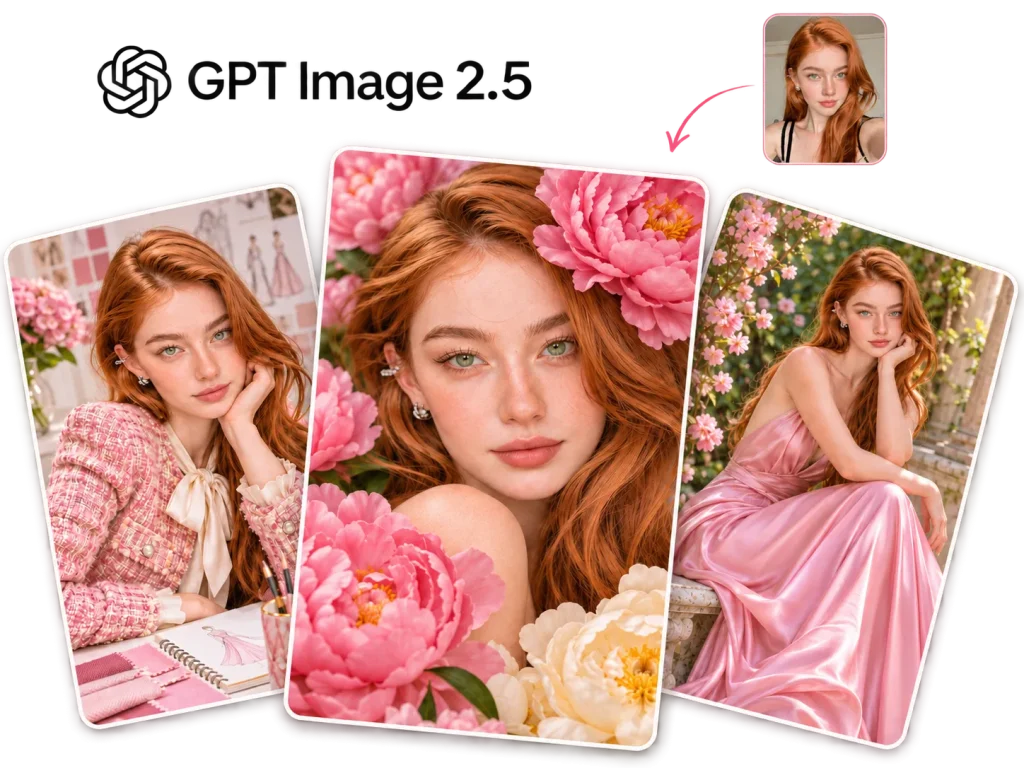
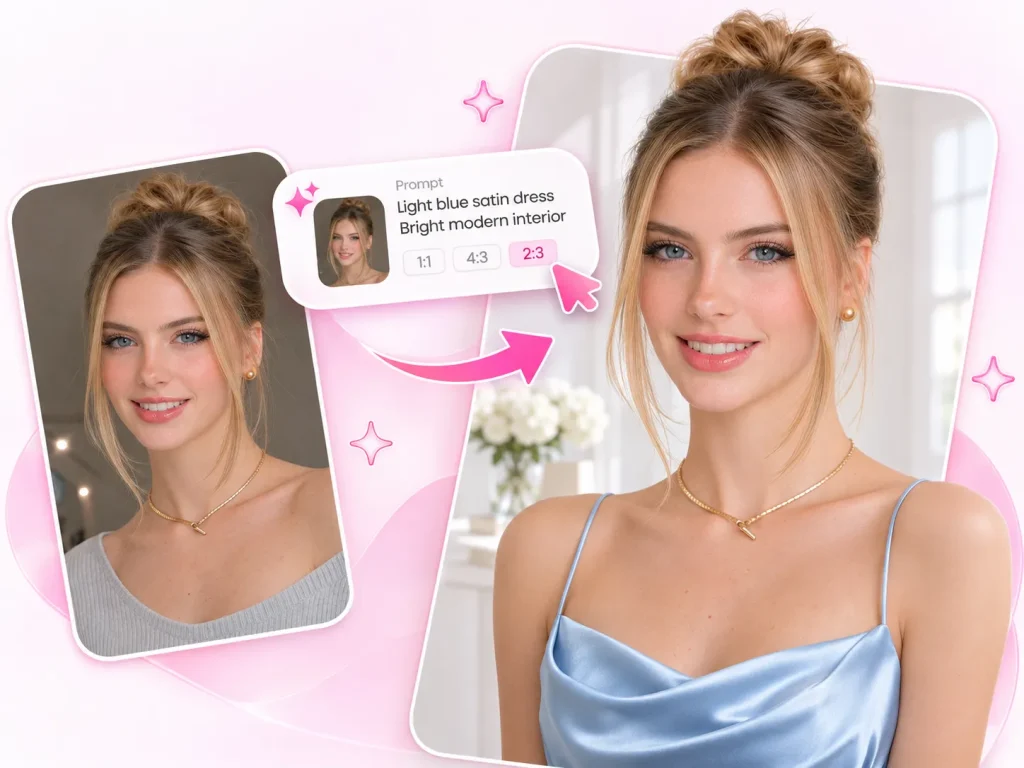
Powered by OpenAI's official GPT Image model series, GPT Image 2.5 lets you edit images using text prompts or reference images. Modify, replace, enhance, and fine-tune image details just by describing what you want. It also supports the latest GPT Image 2.6 model, giving you more options for precise and flexible image editing.
Start Creating with GPT Image 2.5 & 2.6
Upload images or enter prompts to try GPT Image 2、2.5 or 2.6 online. Choose between Flare and Sunburst to see how each model performs.
See What GPT Image 2.5 Can Do
From everyday photo editing to commercial projects, GPT Image generator handles a wide range of image tasks while maintaining high-quality results.
GPT AI Image Generator
What Is GPT Image 2.5?
GPT Image 2.5 is OpenAI's latest AI image generation and editing model. You can create images from text prompts or upload reference images to guide your edits, with support for up to 16 reference images. Compared to GPT Image 2, It comes with two models, Flare and Sunburst. Flare focuses on faster generation, while Sunburst puts more emphasis on image details and editing quality. You can switch between them based on what you need.
💡Flare or Sunburst? Here’s What Sets Them Apart
GPT Image 2.5 Flare
Make image creation faster with Flare. Built for speed and efficiency, it helps you try out different ideas and test variations quickly, delivering results in just seconds.
-
Generate images faster with less waiting time
-
Balance image quality with generation speed
-
Great for exploring ideas and testing different variations quickly
GPT Image 2.5 Sunburst
Sunburst puts more focus on image quality, fine details, and editing precision, giving you greater control over your edits and helping you get the results you have in mind.
-
Capture finer details and richer textures
-
Make precise adjustments to image elements and small details
-
Better preserve the original subject and visual style
What's New in GPT Image 2.5?
Make Precise Edits to Any Part of Your Image
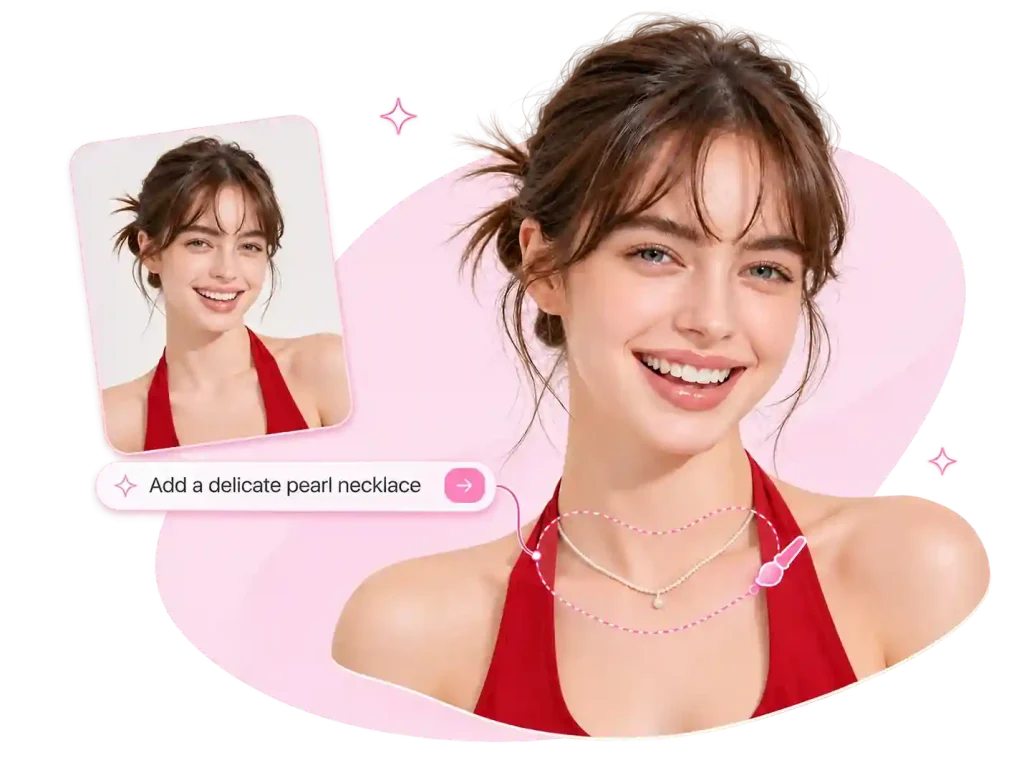
GPT Image 2.5 has improved its ability to make targeted edits and better understand your instructions. You can change a product's color or adjust a small element in the image without changing the entire picture. Compared to GPT Image 2, it offers better control over the editing process and does a better job of keeping the parts you want to leave untouched.
Keep Your Images Consistent Through Multi-Turn Editing
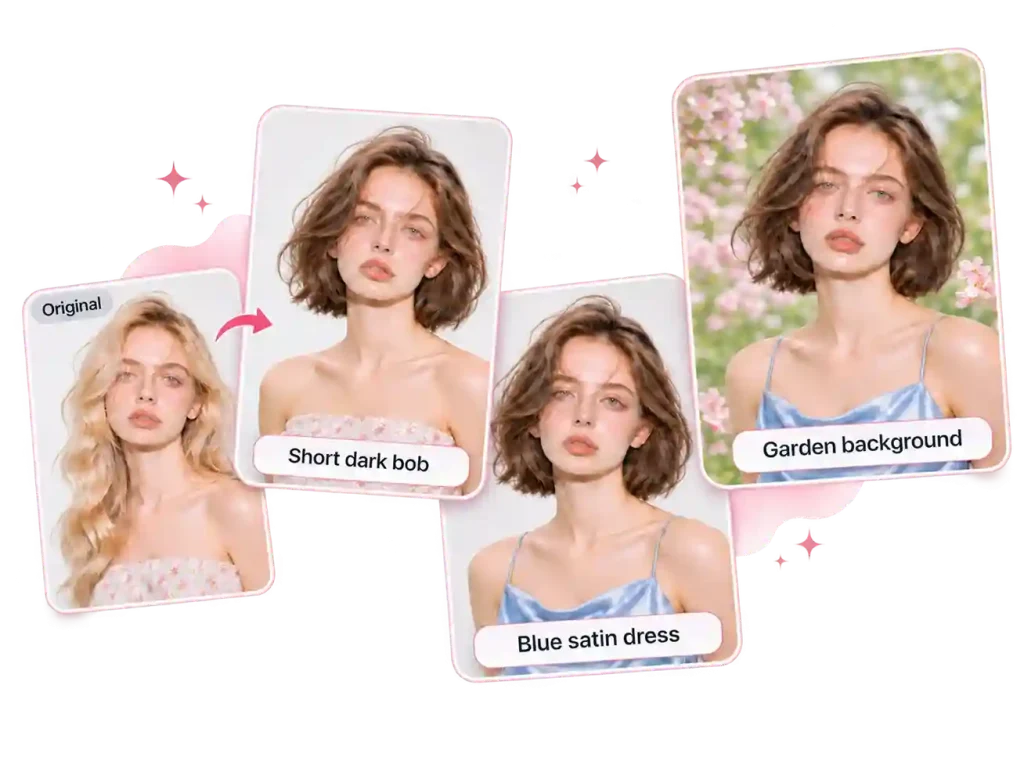
For those who prefer to start with an image and fine-tune the details along the way, GPT Image 2.5 is a good fit. It does a better job of following a series of instructions and keeping track of previous edits. You can build on the last result to change hairstyles, outfits, backgrounds, or lighting without having to describe the entire image again each time.
Render Clear and Accurate Text, Even at Small Sizes
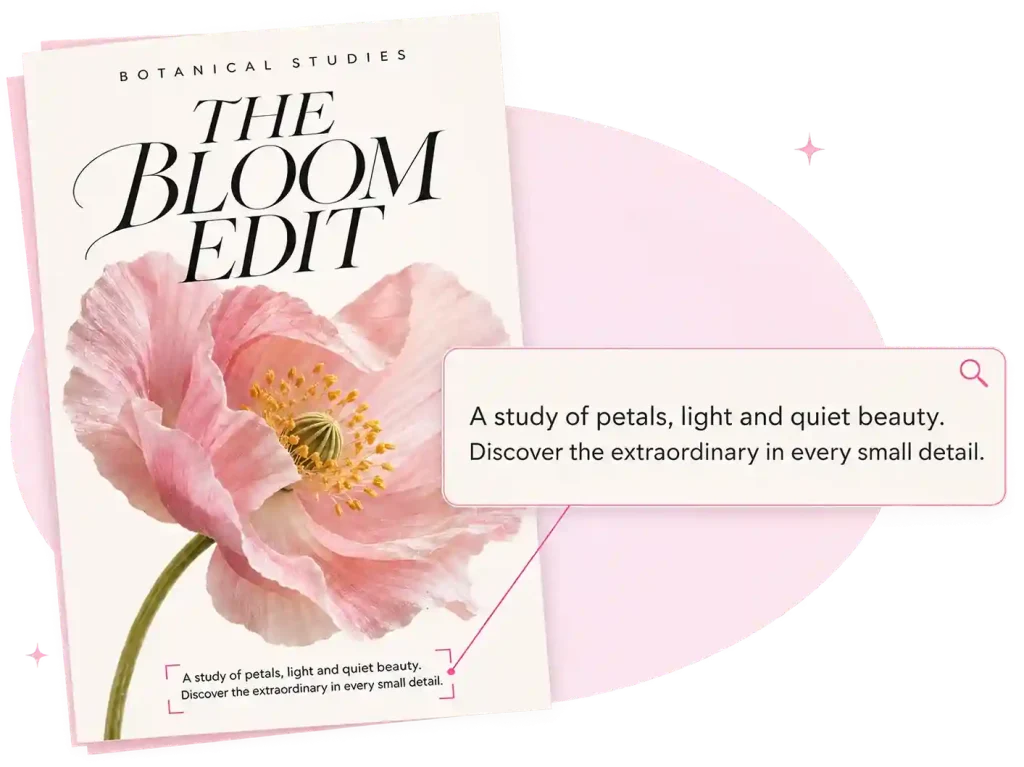
AI-generated images with text often come with spelling mistakes, blurry small text, or letters that run together. GPT Image 2.5 improves text rendering, making it easier to get accurate titles and longer text, as well as clearer small details like product labels and poster descriptions.
Adjust Image Quality More Flexibly to Match Your Needs
Compared to having just one fixed output setting, the upgraded GPT Image generator gives you more flexibility. It offers six quality options, from Auto to Max, so you can choose the setting based on how you plan to use the image and how much detail you need.
GPT Image vs. Nano Banana: Which Model Is Better?
The GPT Image and Nano Banana are two popular AI image models, each with its own strengths. The comparison table below shows how they differ.
| Comparison | GPT Image 2 | GPT Image 2.5 | GPT Image 2.6 | Nano Banana |
|---|---|---|---|---|
| Model Versions | Standard | Flare, Sunburst | Flare, Sunburst | Standard |
| Reference Images | Up to 16 images | Up to 16 images | Up to 16 images | Up to 14 images |
| Output Resolution | Up to 4K | Up to 4K | Up to 4K | Up to 4K |
| Image Quality Options | 4 options (Auto, Low, Medium, High) | 6 options (Auto, Low, Medium, High, X-High, Max) | 6 options (Auto, Low, Medium, High, X-High, Max) | 1K, 2K, 4K |
| Aspect Ratio | Custom aspect ratios supported | Custom aspect ratios supported | Custom aspect ratios supported | Multiple preset aspect ratios |
| Local Image Editing | Text prompts + Mask | Text prompts + Mask | Text prompts + Mask | Text prompts only |
| Text Rendering | Supports accurate text rendering | Improved text rendering | More refined text rendering and layout consistency | Supports text generation and complex layouts |
| Multi-Turn Editing | Supports image editing | Improved multi-turn editing and subject preservation | Enhanced editing precision and subject consistency | Maintains consistency for up to 4 characters |
| Additional Features | — | — | Animated GIF and SVG output | — |
Advantages
Why Use GPT Image 2.5 on EzMaker AI?
Use GPT Image 2 and 2.5 with EzMaker AI Image Editor for a simpler, more flexible editing experience, without complicated setup.
1. Free to Use
No daily usage limits. Generate and edit images anytime, anywhere, without signing in.
2. Two Models Supported
Dive into the art of typography and its pivotal role in design.
3. Fast Image Generation
No long waiting queues. Your images are ready in just a few seconds.
4. Up to 4K Resolution
Get high-quality images with resolutions up to 4K, all without watermarks.
How to Use GPT Image 2.5 on EzMaker AI
Create or edit images with GPT Image in just a few simple steps. Upload a reference image or enter a prompt, adjust your settings, and let AI handle the rest.
Choose a Model
If speed matters more to you, go with Flare. If you want finer details and more precise edits, Sunburst is the better choice.
Add Images & Prompts
Upload up to 16 reference images with GPT Image 2.5, then enter a prompt describing the edits or results you want.
Download or Edit Again
Once you're happy with the result, download your image directly or enter another prompt to fine-tune the details without starting over.
Ready to Create with GPT AI Image Generator?
Turn your ideas into images or make precise edits with just a few prompts. Start creating for free with EzMaker AI image editor.
Help Center
ChatGPT Images 2.5 FAQs
Find quick answers to common questions. Still need help? Feel free to reach out to us by email.
GPT Image 2.5 is OpenAI's latest AI image generation and editing model. It can create images from text prompts or edit existing ones using uploaded reference images. Compared to the previous version, it offers two models to choose from.
Released as the newest addition to OpenAI's GPT Image series, GPT Image 2.6 takes image generation and editing further. Compared with GPT Image 2.5 and earlier versions, it offers up to 50% faster generation, more precise editing, and better consistency across multiple edits. It also introduces new capabilities, including animated GIF and SVG output, giving users more flexibility in image creation.
Open the AI image editor on EzMaker, select ChatGPT Images 2.5, then upload a reference image and enter a prompt describing the result you want.
One of the biggest upgrades in GPT Image 2.5 is the addition of two models, Flare and Sunburst, giving users more options to choose from. It also brings improvements to image details, text rendering, and multi-turn editing.
GPT Image 2.5 supports up to 16 reference images, the same as GPT Image 2. You can upload multiple images to guide the generation or editing process and help the model better understand your desired result.
Yes. You can use images generated for commercial purposes. Just make sure the reference images and other materials you upload don't contain copyrighted content that you don't have permission to use.
Choose Flare when you want faster image generation and need to try out ideas quickly. Sunburst is a better choice when image quality, fine details, and editing precision matter more. You can switch between the two depending on what you're working on.